
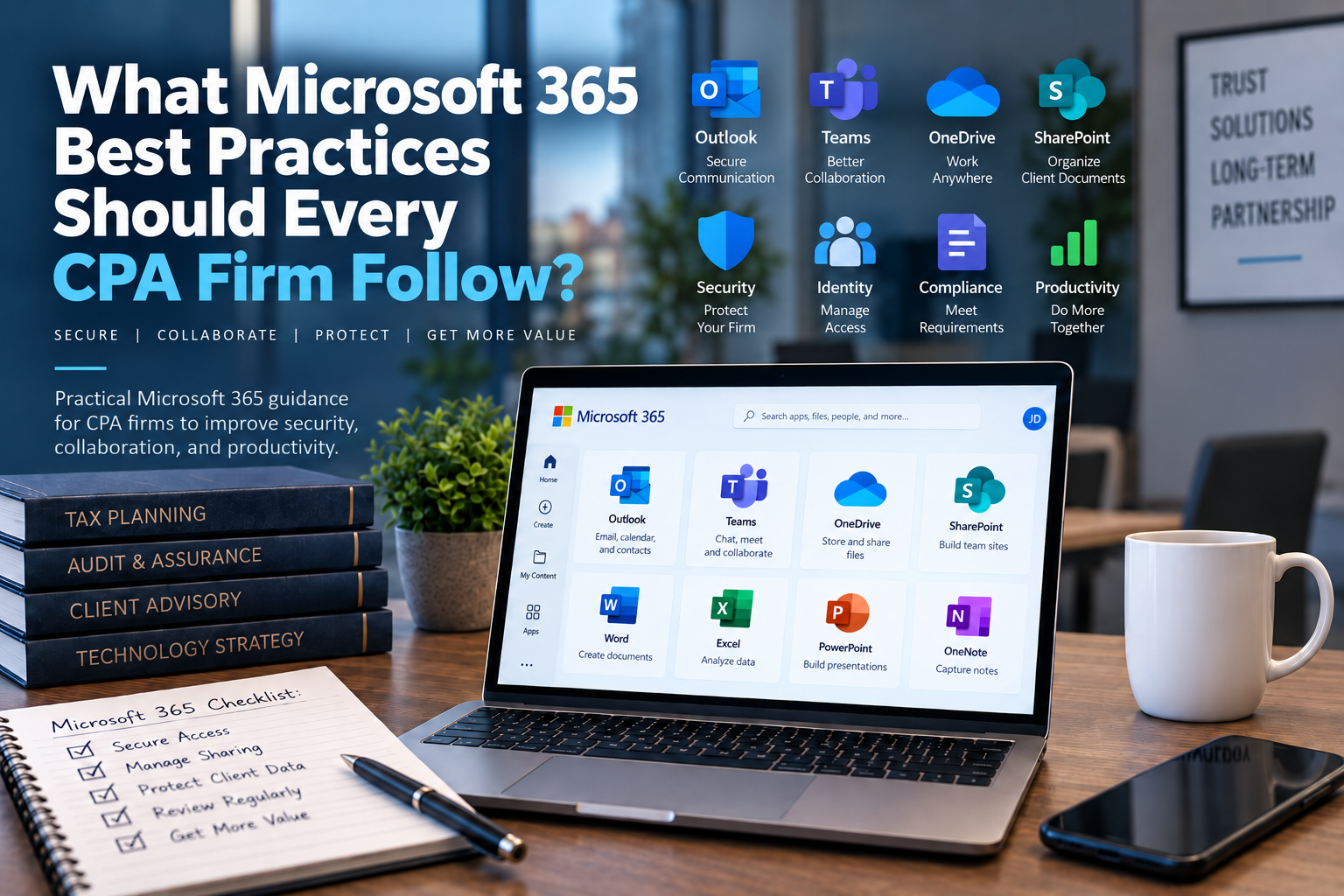
CPA firms should follow Microsoft 365 best practices across six areas: identity and access, email security, Teams and SharePoint governance, OneDrive file management, licensing and configuration, and backup and recovery planning.
For CPA firms with 10 to 50 employees, Microsoft 365 is usually much more than email. It may support client communication, internal collaboration, file storage, user authentication, mobile access, shared mailboxes, document workflows, security controls, and administrative access.
That means Microsoft 365 should be managed as a business-critical platform, not simply treated as a subscription that renews every month.
The most important question is not:
“Do we have Microsoft 365?”
The better question is:
“Is Microsoft 365 configured, secured, managed, and reviewed in a way that supports how our CPA firm actually works?”
Why Microsoft 365 Matters So Much for CPA Firms
Microsoft 365 often sits at the center of a CPA firm’s daily operations.
Employees may use it for:
- Calendars
- Microsoft Teams
- OneDrive
- SharePoint
- Office applications
- Shared mailboxes
- Client communication
- Internal document sharing
- Mobile access
- Multifactor authentication
- User identity
- Security policies
- Administrative access
That central role makes Microsoft 365 extremely valuable.
It also makes misconfiguration risky.
If a user account is compromised, an attacker may gain access to email, documents, shared files, Teams conversations, client communications, and internal firm information.
If permissions are too broad, employees may have access to information they do not need.
If external sharing is unmanaged, sensitive files may be shared more widely than intended.
If former employees remain active, the firm may carry unnecessary security exposure.
If backup and retention expectations are misunderstood, the firm may assume information is recoverable when it is not.
For a CPA firm handling taxpayer information, financial records, payroll data, business documents, and confidential client communication, these issues deserve more than casual attention.
The CPA Firm Microsoft 365 Management Framework
We recommend organizing Microsoft 365 best practices around six areas:
- Identity and Access
- Email Security and Phishing Protection
- Teams, SharePoint, and OneDrive Governance
- Licensing and Configuration
- Backup, Retention, and Recovery
- Ongoing Review and Lifecycle Management
This framework helps firm leadership think beyond individual Microsoft features.
Microsoft 365 is not just a collection of apps.
It is part of the firm’s operating environment.
A useful Microsoft 365 strategy should answer:
- Who has access?
- What can they access?
- How is access protected?
- Where should firm documents live?
- How are files shared internally and externally?
- What happens when employees join, change roles, or leave?
- Which settings are available, licensed, configured, and actively managed?
- What information can be recovered if something goes wrong?
- Who reviews the environment over time?
These are business questions supported by technology.
-
Strengthen Identity and Access Management
Identity is one of the most important Microsoft 365 topics for CPA firms.
In simple terms, Microsoft 365 often helps answer:
“Who is this user, and what are they allowed to access?”
That makes identity management foundational.
Before discussing advanced features, dashboards, or collaboration tools, the firm should know whether basic access is being managed well.
A Microsoft 365 identity review should include:
- Active users
- Former employees
- Seasonal employees
- Interns
- Contractors
- Administrative accounts
- Shared mailboxes
- Distribution groups
- External guests
- Service accounts
- Mobile devices
- Multifactor authentication
- Account recovery methods
The goal is not to create unnecessary complexity.
The goal is to make sure the firm understands who can access its systems and whether that access still makes sense.
Use a Join, Change, Leave Process
Every CPA firm should have a simple process for user lifecycle management:
Join. Change. Leave.
Join
When someone joins the firm, the process should define:
- Who approves the new user
- Which Microsoft 365 license is needed
- Which mailbox or email address is created
- Which groups the user joins
- Which SharePoint sites or Teams they can access
- Whether they need shared mailbox access
- Whether they need remote access
- Whether they need mobile access
- How multifactor authentication is enrolled
- What security expectations they receive
This is especially important before tax season when firms may onboard seasonal employees, interns, contractors, or temporary staff.
If onboarding is rushed, permissions can become inconsistent.
Change
When someone changes roles, the firm should review whether their access needs to change.
For example:
- A staff accountant becomes a manager.
- An employee moves from bookkeeping to tax.
- A seasonal employee becomes full-time.
- A user takes on billing responsibilities.
- A partner gains access to a new client group.
- Someone no longer needs access to a shared mailbox.
Role changes often create access sprawl because new permissions are added while old permissions are never removed.
A change process helps prevent that.
Leave
When someone leaves the firm, the process should define:
- When the account is disabled
- Who preserves or reviews the mailbox
- Whether email forwarding is needed
- Who receives access to relevant files
- Whether OneDrive data needs to be transferred
- Which groups the user is removed from
- Which devices are recovered
- Which MFA methods are removed
- Whether mobile access is revoked
- Whether application access outside Microsoft 365 also needs removal
Former employee access should not depend on memory.
It should follow a documented process.
For CPA firms with seasonal staff, the offboarding date should be planned before onboarding begins.
Multifactor Authentication Should Be Reviewed, Not Assumed
Multifactor authentication, or MFA, is one of the most important protections for Microsoft 365 accounts.
But the firm should not stop at asking:
“Do we have MFA?”
A better review asks:
- Is MFA required for all users?
- Is MFA required for administrative accounts?
- Are there exceptions?
- Who approves exceptions?
- Are exceptions documented?
- Are secure authentication methods being used?
- What happens if a user loses access to their authentication device?
- How are new users enrolled?
- How are former users removed?
- Are service accounts handled appropriately?
MFA is especially important for CPA firms because Microsoft 365 accounts may contain or provide access to sensitive client communication, tax documents, business records, payroll information, and internal firm data.
MFA does not eliminate every security risk.
But it can reduce the chance that a stolen password alone gives an attacker access to the firm’s environment.
Administrative Accounts Deserve Extra Protection
Administrative accounts can create users, reset passwords, change security settings, manage licenses, access sensitive systems, and alter the Microsoft 365 environment.
That makes them higher-risk than ordinary user accounts.
CPA firms should review:
- Who has administrative access
- Whether each administrator still needs that access
- Whether administrator access is protected by MFA
- Whether daily-use accounts are separate from admin accounts
- Whether former providers still have access
- Whether emergency access is documented
- Whether admin roles are limited to what users actually need
- Whether administrative activity is reviewed when appropriate
A 15-person CPA firm may not need a complicated enterprise identity program.
But it should still avoid casual administrator access.
The fewer people who can make major changes, the easier the environment is to manage and protect.
Review Shared Mailboxes, Groups, and Distribution Lists
CPA firms often use shared mailboxes and groups for firm operations.
Examples may include:
- info@
- tax@
- admin@
- billing@
- payroll@
- support@
- partners@
- clientservices@
These tools can improve workflow, but they need periodic review.
Ask:
- Who has access to each shared mailbox?
- Does each person still need access?
- Are former employees removed?
- Are seasonal users removed?
- Are forwarding rules in place?
- Are mailbox permissions documented?
- Are distribution groups still accurate?
- Who owns each group or mailbox?
Shared mailboxes are easy to create and easy to forget.
Over time, they can accumulate access that no longer matches the firm’s structure.
A periodic review helps reduce unnecessary exposure.
External Guests and Sharing Should Be Intentional
Microsoft 365 can make it easy to collaborate with people outside the firm.
That can be valuable.
It can also create risk if external access is not managed.
CPA firms should understand:
- Whether external sharing is allowed
- Who can invite external users
- Which Teams or SharePoint sites allow external access
- Whether guest users are reviewed
- Whether shared links expire
- Whether anonymous links are allowed
- Who can access sensitive client documents
- How external users are removed when no longer needed
The goal is not to prohibit all external collaboration.
The goal is to make it deliberate.
Client documents, internal firm files, and financial information should not be accessible through old links or forgotten guest accounts.
-
Improve Email Security and Phishing Protection
Email remains one of the most important risk areas for CPA firms.
Employees use email to communicate with clients, vendors, colleagues, software providers, banks, payroll contacts, and outside advisors.
During tax season, email volume increases, urgency increases, and employees may be more likely to interact with attachments and document links.
That makes email security a core Microsoft 365 best practice.
CPA firms should review:
- Email filtering
- Impersonation protection
- Suspicious attachment handling
- Suspicious link handling
- Mail forwarding rules
- Shared mailbox permissions
- Phishing reporting
- Spoofing protection
- User training
- Administrator alerts
- Business email compromise procedures
The practical goal is to reduce the chance that a malicious message reaches an employee, reduce the chance that an employee acts on it, and improve the firm’s ability to respond quickly if something suspicious happens.
Watch for Forwarding Rules and Mailbox Abuse
When attackers compromise an email account, they may create mailbox rules to hide activity or forward messages externally.
For example, they may create rules that:
- Forward certain messages to an outside address
- Move security alerts to a hidden folder
- Delete messages from specific senders
- Hide replies from clients
- Filter messages containing financial terms
A CPA firm should periodically review suspicious forwarding rules and mailbox behavior.
This is especially important for users who handle client documents, billing, payroll, tax communication, or partner-level correspondence.
The firm should also review whether automatic forwarding to external addresses is allowed and whether that setting matches the firm’s security expectations.
Train Employees on CPA-Specific Email Scenarios
Generic phishing training has value, but CPA firms benefit from examples that reflect their work.
Employees should be prepared to recognize suspicious messages involving:
- Fake client document links
- Fraudulent tax document requests
- Fake Microsoft 365 login pages
- Messages impersonating partners
- Urgent deadline-based requests
- Payroll or banking changes
- Vendor invoice updates
- Fake shared-file notifications
- Suspicious e-signature requests
- Fake scanner or copier alerts
- Prospective client attachments
The goal is not to make employees paranoid.
The goal is to make reporting normal.
Employees should know exactly how to report a suspicious email and what to do if they clicked a link or entered information.
A fast report gives the technology partner or security team more time to investigate and contain the issue.
Verification Procedures Reduce Business Email Compromise Risk
Some attacks do not rely on malware.
They rely on trust and urgency.
For example, an attacker may impersonate a client and request a bank-account change.
Or they may impersonate a partner and request a document, payment, or urgent action.
CPA firms should define verification procedures for sensitive requests.
Examples may include:
- Confirm banking changes using a known phone number
- Do not rely solely on email for payment changes
- Verify unusual document requests through an established channel
- Escalate requests involving sensitive client information
- Report unexpected Microsoft 365 login prompts
- Require approval for unusual external sharing
These procedures should be simple enough that employees can follow them during busy periods.
The right process can prevent a routine workday from becoming a security incident.
-
Create Clear Teams, SharePoint, and OneDrive Governance
Microsoft 365 gives CPA firms several ways to store, share, and collaborate on documents.
That flexibility can be powerful.
It can also become confusing.
Employees may ask:
- Should this file go in OneDrive or SharePoint?
- Should we create a Team for this client?
- Should client documents be shared through email, OneDrive, SharePoint, or a portal?
- Who owns this folder?
- Who can invite external users?
- Can we share a link with a client?
- What happens when an employee leaves?
- Where is the final version of this document?
If the firm does not define basic rules, employees will create their own.
That can lead to scattered files, inconsistent permissions, duplicate documents, unnecessary external sharing, and confusion during client work.
Governance does not need to be complicated.
But CPA firms should have clear expectations for where information belongs and how it is shared.
OneDrive, SharePoint, and Teams Serve Different Purposes
A helpful starting point is explaining the difference between the major collaboration tools.
OneDrive
OneDrive is generally best for an individual user’s work files.
It may be appropriate for drafts, personal working documents, and files that are not yet ready for broader team access.
However, OneDrive should not become the only location for important client or firm records that other people need to access long term.
If an employee leaves, changes roles, or becomes unavailable, files stored only in that person’s OneDrive may create avoidable friction.
SharePoint
SharePoint is generally better for shared firm, department, client, or project information.
It can provide more structured access, shared ownership, and document libraries.
For CPA firms, SharePoint may be useful for internal procedures, departmental documents, firm resources, templates, and certain controlled collaboration areas.
The firm should still define permissions carefully.
Teams
Microsoft Teams is often used for communication and collaboration, but it is closely connected to SharePoint behind the scenes.
Files shared in a Team may be stored in an associated SharePoint site.
That means Teams governance and SharePoint governance are connected.
Before creating Teams broadly, the firm should understand:
- Who can create Teams
- What naming conventions are used
- Who owns each Team
- Whether external guests are allowed
- What files are stored there
- How inactive Teams are reviewed
- What happens when a Team is no longer needed
The practical goal is simple:
Employees should know where to put information and who can access it.
Define Where Client Documents Belong
CPA firms should be especially thoughtful about client documents.
The firm may already use a dedicated client portal, document management system, tax application, or accounting platform for certain records.
Microsoft 365 may also be part of the workflow.
Before employees improvise, leadership should define where different types of documents belong.
For example:
- Draft internal notes
- Client-provided documents
- Final tax workpapers
- Engagement letters
- Billing-related documents
- Payroll-related files
- Client correspondence
- Firm templates
- Internal procedures
- Partner-only documents
The answer may differ by firm.
Some firms may use Microsoft 365 heavily.
Others may rely primarily on a specialized document management or client portal system.
The important point is that employees should not have to guess.
If sensitive client files are scattered across email attachments, personal OneDrive folders, desktop folders, SharePoint links, and local downloads, the firm has both operational and security concerns.
A clear document-location policy helps reduce that risk.
External Sharing Should Be Controlled and Reviewed
External sharing is useful when used intentionally.
It can also create exposure if links are shared too broadly, remain active too long, or are accessible to people who no longer need them.
CPA firms should review:
- Whether external sharing is enabled
- Who can share externally
- Whether anonymous links are allowed
- Whether links expire
- Whether downloads are allowed
- Whether external users must authenticate
- Which SharePoint sites allow external sharing
- Whether Teams allows guest access
- How guest users are reviewed
- How client access is removed
The right external sharing configuration depends on the firm’s workflow and risk tolerance.
But the firm should know what the settings are.
External sharing should not be controlled only by default settings that nobody reviewed.
Client Collaboration Needs Guardrails
If Microsoft 365 is used for client collaboration, define the rules.
For example:
- Which types of files may be shared externally?
- Which types of files should use the client portal instead?
- Who may create external links?
- How long should links remain active?
- Should clients authenticate before accessing files?
- Who reviews external sharing?
- What should employees do if they accidentally share something incorrectly?
These questions help the firm balance productivity and control.
The goal is not to make collaboration difficult.
The goal is to avoid accidental oversharing.
Review File Ownership When Employees Leave
When an employee leaves, the firm should review what happens to that person’s Microsoft 365 data.
That may include:
- OneDrive files
- Mailbox contents
- Shared mailbox access
- Teams ownership
- SharePoint site ownership
- Calendar access
- Group memberships
- Files shared externally
- Files shared internally
- Mobile device access
A departure can create operational problems if the employee owned important Teams, SharePoint sites, or shared documents.
The offboarding process should identify which information needs to be retained, transferred, archived, or removed.
This is another reason OneDrive should not quietly become the permanent home for firm-critical documents.
-
Understand Licensing, Configuration, and Management
Microsoft 365 licensing can be confusing because different plans may include different applications, features, security tools, management capabilities, storage options, and compliance-related features.
Those details can also change over time.
For that reason, CPA firms should avoid making technology decisions based only on license names.
Instead, use a more practical framework:
Available. Licensed. Configured. Managed.
This framework helps leadership understand the difference between having access to a feature and actually receiving value from it.
Available
A feature may exist somewhere in the Microsoft ecosystem.
That does not mean the firm can use it.
Licensed
A feature may be included in the firm’s Microsoft 365 license.
That does not mean it is turned on.
Configured
A feature may be available and licensed, but it still needs to be properly configured.
For example, security settings, sharing rules, retention settings, device management policies, and access controls require intentional setup.
Managed
A feature may be configured once, but it still needs ongoing review.
A setting that made sense two years ago may no longer fit the firm’s current users, applications, security needs, or collaboration habits.
This distinction is important because many firms assume that buying a Microsoft 365 plan means the environment is automatically optimized.
It does not.
Microsoft provides the platform.
The firm, its technology partner, and its processes determine whether the platform is configured and managed appropriately.
Match Licenses to Roles and Requirements
A CPA firm does not necessarily need every employee on the same license.
Some users may need desktop Office applications.
Some may work primarily through web applications.
Some may need advanced security or compliance capabilities.
Some may be seasonal users with limited access needs.
Some may require mobile access, Teams, SharePoint, or specific administrative capabilities.
The licensing review should consider:
- Employee role
- Application requirements
- Security requirements
- Device requirements
- Remote-work needs
- Seasonal staffing
- Shared mailbox usage
- Compliance or retention needs
- Budget
- Management complexity
The goal is not simply to minimize licensing cost.
The goal is to align licensing with business needs while avoiding unnecessary waste.
Review Licensing Before Seasonal Hiring
Seasonal employees can create licensing confusion.
Before tax season, the firm should determine:
- How many seasonal users are expected
- Which Microsoft 365 services they need
- Whether they require desktop applications
- Whether they need email
- Whether they need Teams
- Whether they need access to SharePoint or OneDrive
- Whether they need mobile access
- When licenses should be assigned
- When licenses should be removed
- Who approves the request
This planning can prevent rushed account creation and lingering licenses after the seasonal period ends.
Licensing Should Be Connected to Security and Governance
Licensing is not only a cost issue.
It can also affect which management and security features are available to the firm.
Before assuming a control exists, ask:
- Is the feature available in Microsoft 365?
- Is it included in our license?
- Has it been configured?
- Who manages it?
- Is it reviewed over time?
This is especially important for security-related areas such as identity protection, device management, email security, retention, auditing, and access policies.
The specific license requirements should be verified against current Microsoft information before making purchasing decisions.
But the principle is stable:
A Microsoft 365 license only creates value when it supports the firm’s actual operating, security, and collaboration requirements.
-
Review Backup, Retention, and Recovery Expectations
Microsoft 365 may be central to the firm’s daily work, but many CPA firms do not have a clear understanding of what happens when information is deleted, overwritten, misplaced, or compromised.
That creates a dangerous assumption:
“It’s in Microsoft 365, so Microsoft must be backing everything up exactly the way we need.”
That assumption should be tested.
Microsoft 365 provides a powerful platform with built-in capabilities for availability, retention, and recovery depending on the service, configuration, license, and settings involved. But availability and recoverability are not the same thing.
For a CPA firm, the practical question is:
“Can we recover the information we need, when we need it, in the way the business expects?”
Availability Is Not the Same as Backup
Microsoft’s responsibility for keeping its cloud services available is not the same as the firm’s responsibility to understand its own data protection requirements.
CPA firms should review recovery expectations for:
- Exchange Online email
- Shared mailboxes
- OneDrive
- SharePoint
- Teams
- Deleted users
- Deleted files
- Accidentally changed documents
- Malicious deletion
- Ransomware-related changes
- Long-term retention needs
- Former employee data
- Client-related files
The firm should understand:
- What can be recovered
- How long recovery is available
- Who can perform recovery
- Whether recovery has been tested
- Whether separate backup is appropriate
- Which systems outside Microsoft 365 also need protection
This is not about assuming Microsoft 365 is inadequate.
It is about aligning recovery capabilities with business expectations.
Retention Settings Need Intentional Review
Retention is another area where assumptions can create problems.
CPA firms may need to preserve certain information for business, operational, contractual, regulatory, insurance, or client-service reasons.
Those requirements vary by firm and should be reviewed with appropriate advisors where needed.
From a technology-management perspective, the firm should understand:
- What email retention expectations exist
- What document retention expectations exist
- Whether retention settings are configured
- Whether users can delete information permanently
- Whether former employee data is preserved
- Whether client-related files have defined storage locations
- Whether retention settings match the firm’s workflow
- Whether retention creates storage or management issues
A technology partner should not decide legal retention requirements for the firm.
But it should help leadership understand what is configured and where assumptions may exist.
Microsoft 365 Backup May Be Appropriate for Some Firms
Some CPA firms may decide that Microsoft 365’s configured retention and recovery capabilities are sufficient for their needs.
Others may want a separate Microsoft 365 backup solution.
The decision should be based on business requirements, not fear.
Questions to ask include:
- How important is email recovery?
- How important is OneDrive recovery?
- How important is SharePoint recovery?
- How quickly would we need to restore information?
- How long do we need data retained?
- How would we recover from accidental deletion?
- How would we recover from malicious deletion?
- How would we recover former employee data?
- How would we handle ransomware-related file changes?
- Who is responsible for performing recovery?
If leadership cannot answer those questions, the firm may not yet know whether its current recovery approach is adequate.
Backup and Recovery Should Include Systems Beyond Microsoft 365
Microsoft 365 is only one part of the CPA firm’s technology environment.
The firm may also need to consider backup and recovery for:
- Local servers
- Hosted servers
- Hosted desktops
- Tax applications
- Accounting applications
- Document management systems
- Client portals
- Workstations
- File shares
- Databases
- Cloud applications outside Microsoft 365
This matters because client work may span multiple platforms.
A document may begin in email, be saved to SharePoint, exported to a tax application, stored in a document management system, and later shared through a portal.
The firm’s recovery strategy should account for where important data actually lives.
-
Review Microsoft 365 on a Recurring Schedule
Microsoft 365 should not be configured once and ignored.
CPA firms change over time.
Employees join.
Employees leave.
Seasonal staff are added.
Roles change.
New Teams are created.
SharePoint sites multiply.
External links are shared.
Licenses are assigned.
Permissions accumulate.
Security settings evolve.
Microsoft updates its platform.
The firm’s risk profile changes.
That is why Microsoft 365 should be reviewed on a recurring schedule.
For many CPA firms, a practical review schedule may include:
- Monthly: review new users, departing users, critical alerts, and urgent access changes
- Quarterly: review shared mailboxes, groups, administrative access, external sharing, and license usage
- Annually: review governance, backup and retention expectations, security configuration, lifecycle procedures, and alignment with the firm’s technology roadmap
- Before tax season: review seasonal staff, remote access, MFA, application access, and high-volume workflows
- After major changes: review settings after migrations, mergers, office moves, major staffing changes, or new application rollouts
The exact schedule can vary.
The principle should not.
Microsoft 365 is a managed environment.
Use a Simple Microsoft 365 Review Framework
A practical review does not need to be overwhelming.
Use this framework:
Identify → Protect → Control → License → Recover → Review
Identify
Know who your users are, which accounts exist, which groups and mailboxes are active, where data is stored, and which applications connect to Microsoft 365.
Protect
Use appropriate security controls such as MFA, administrative account protection, email security, secure authentication, and suspicious activity review.
Control
Define permissions, external sharing, Teams ownership, SharePoint access, OneDrive usage, and lifecycle procedures.
License
Match licenses to user roles, business needs, seasonal users, security requirements, and management capabilities.
Recover
Understand retention, backup, deleted-user handling, file recovery, mailbox recovery, and recovery expectations for critical data.
Review
Revisit the environment regularly so settings and permissions continue to match the firm’s actual operations.
This framework is simple enough for leadership to understand and specific enough for the technology partner to act on.
Microsoft 365 Best Practices Checklist for CPA Firms
Use this checklist to evaluate your Microsoft 365 environment.
Identity and Access
- Active users are reviewed
- Former employees are disabled or removed
- Seasonal employee access is planned
- Seasonal employee access is removed when no longer needed
- User roles are matched to appropriate groups and permissions
- Administrative accounts are documented
- Administrative access is limited
- MFA is required for users
- MFA is required for administrators
- MFA exceptions are documented and reviewed
Email Security
- Email filtering is reviewed
- Suspicious forwarding rules are reviewed
- Shared mailbox access is reviewed
- External forwarding settings are reviewed
- Users know how to report suspicious email
- Phishing examples reflect CPA workflows
- Sensitive requests have verification procedures
- Mailbox permissions are reviewed
- Business email compromise procedures are documented
- Administrative alerts are reviewed
Teams, SharePoint, and OneDrive
- Employees know when to use OneDrive
- Employees know when to use SharePoint
- Teams creation is controlled or reviewed
- Team owners are documented
- SharePoint site owners are documented
- External sharing settings are reviewed
- Guest users are reviewed
- Client document storage expectations are defined
- Former employee file ownership is addressed
- Inactive Teams or sites are reviewed
Licensing and Configuration
- Licenses are matched to user roles
- Seasonal licensing needs are planned
- Unused licenses are reviewed
- Security-related features are verified before relying on them
- Configuration matches business requirements
- Management responsibilities are documented
- License changes are reviewed before renewals
- New features are evaluated before rollout
- Available features are distinguished from configured features
- Settings are reviewed after major business changes
Backup, Retention, and Recovery
- Email recovery expectations are documented
- OneDrive recovery expectations are documented
- SharePoint recovery expectations are documented
- Teams-related data recovery is understood
- Former employee data handling is documented
- Retention expectations are reviewed
- Separate Microsoft 365 backup is evaluated where appropriate
- Recovery procedures are understood
- Recovery capabilities are periodically tested or reviewed
- Systems outside Microsoft 365 are included in the broader backup plan
Ongoing Review
- Monthly user changes are reviewed
- Quarterly access reviews are performed
- Administrative access is reviewed periodically
- External sharing is reviewed periodically
- License usage is reviewed periodically
- Security configuration is reviewed periodically
- Microsoft 365 is included in tax-season readiness planning
- Microsoft 365 is included in cybersecurity planning
- Microsoft 365 is included in the annual technology roadmap
- Review findings are prioritized and documented
A Practical Example: Improving Microsoft 365 for a 25-Person CPA Firm
Consider a hypothetical 25-person CPA firm in Las Vegas.
The firm uses Microsoft 365 for email, Teams, OneDrive, SharePoint, shared mailboxes, and Office applications. It also uses tax software, a document management system, client portals, and a local server.
The firm already pays for Microsoft 365 every month, but leadership is not sure whether the environment is being managed effectively.
A review identifies several issues:
- MFA is enabled for most users but not all administrators
- Former seasonal employees still appear in some groups
- Shared mailbox permissions have not been reviewed recently
- Several Teams exist without clear owners
- Some client files are being stored in personal OneDrive folders
- External sharing settings have not been reviewed
- License assignments do not clearly match user roles
- Retention and recovery expectations are undocumented
- Employees do not know when to use Teams, SharePoint, OneDrive, or the client portal
- Microsoft 365 is not part of the firm’s tax-season readiness review
The firm does not need to rebuild everything at once.
It needs a prioritized plan.
First 30 Days
During the first 30 days, the firm and its technology partner may prioritize:
- Enforcing MFA for administrative accounts
- Reviewing former employee and seasonal employee access
- Reviewing shared mailbox permissions
- Identifying Teams and SharePoint owners
- Reviewing external sharing settings
- Clarifying where client documents should be stored
- Documenting Microsoft 365 recovery expectations
These steps improve security and visibility without overwhelming the firm.
Next 60 to 90 Days
After the initial review, the firm may continue with:
- License review by role
- SharePoint and Teams governance cleanup
- OneDrive usage guidance
- Review of email security settings
- User training on phishing and file sharing
- Microsoft 365 backup evaluation
- Quarterly access-review process
Longer-Term Planning
Over time, Microsoft 365 should become part of the firm’s broader technology roadmap.
That may include:
- Tax-season readiness planning
- Cybersecurity reviews
- AI readiness
- Device management
- Data governance
- Business continuity planning
- License optimization
- Employee onboarding and offboarding procedures
The point is not to use every Microsoft feature.
The point is to manage the platform intentionally.
Frequently Asked Questions About Microsoft 365 for CPA Firms
Is Microsoft 365 just email for CPA firms?
No.
Microsoft 365 may include email, calendars, Teams, OneDrive, SharePoint, Office applications, identity, authentication, mobile access, security controls, and administrative management.
For many CPA firms, Microsoft 365 is a business-critical platform, not simply an email subscription.
What is the most important Microsoft 365 security setting for CPA firms?
Multifactor authentication is one of the most important baseline protections, especially for Microsoft 365 users and administrators.
However, MFA is not enough by itself.
CPA firms should also review email security, administrative access, former employee accounts, shared mailboxes, external sharing, permissions, backup and recovery expectations, and ongoing review procedures.
Should CPA firms use OneDrive or SharePoint for client files?
It depends on the firm’s workflow, document management system, client portal, and security requirements.
In general, OneDrive is better for individual working files, while SharePoint is better for shared firm, department, client, or project information.
CPA firms should define where client documents belong so employees are not making inconsistent decisions.
Should CPA firms allow external sharing in Microsoft 365?
External sharing can be useful, but it should be controlled and reviewed.
CPA firms should understand who can share externally, whether anonymous links are allowed, whether links expire, whether guest users are reviewed, and which types of information should use a client portal instead.
The goal is deliberate collaboration, not accidental oversharing.
Does Microsoft 365 include backup?
Microsoft 365 provides cloud services with built-in availability, retention, and recovery capabilities depending on the service, configuration, license, and settings involved.
That does not automatically mean the firm’s recovery expectations are fully met.
CPA firms should review what can be recovered, for how long, who can restore it, and whether a separate Microsoft 365 backup solution is appropriate.
How often should CPA firms review Microsoft 365?
CPA firms should review Microsoft 365 on a recurring basis.
A practical schedule may include monthly user-change reviews, quarterly access and sharing reviews, annual governance and recovery reviews, and additional reviews before tax season or after major business changes.
Should seasonal employees get Microsoft 365 accounts?
If seasonal employees need email, Teams, SharePoint, OneDrive, Office applications, or other Microsoft 365 services, they may need accounts and licenses.
The firm should plan seasonal access before busy season and remove access when the engagement ends.
Seasonal access should be intentional, approved, and documented.
How should CPA firms handle former employee Microsoft 365 accounts?
Former employee access should be disabled or removed according to a defined offboarding process.
The firm should also review mailbox preservation, email forwarding, OneDrive files, Teams ownership, SharePoint access, group memberships, mobile access, and any application access outside Microsoft 365.
What does “Available, Licensed, Configured, Managed” mean?
It means there are four different stages between a Microsoft feature existing and the firm actually benefiting from it.
A feature may be available in Microsoft’s ecosystem, included in a license, properly configured, and then actively managed over time.
CPA firms should avoid assuming that a feature is protecting the firm simply because it appears in a Microsoft product description.
Who should manage Microsoft 365 for a CPA firm?
Microsoft 365 should be managed by someone who understands both the technical platform and the firm’s business workflow.
That may be an internal administrator, a managed IT provider, a Microsoft specialist, or a combination.
The important point is that responsibility should be clear.
Microsoft 365 should not be unmanaged simply because the subscription is active.
Key Takeaways
Microsoft 365 can be one of the most important technology platforms in a CPA firm.
To manage it effectively, focus on six best-practice areas:
- Identity and Access
Use a Join, Change, Leave process, review users, protect administrative accounts, and manage seasonal access intentionally. - Email Security and Phishing Protection
Review filtering, forwarding rules, shared mailboxes, reporting procedures, and CPA-specific phishing scenarios. - Teams, SharePoint, and OneDrive Governance
Define where documents belong, who owns shared spaces, how external sharing works, and how former employee data is handled. - Licensing and Configuration
Match licenses to roles and remember the difference between features being available, licensed, configured, and managed. - Backup, Retention, and Recovery
Understand what can be recovered, how long recovery is available, and whether separate backup is appropriate. - Ongoing Review
Review Microsoft 365 regularly so settings, access, permissions, licensing, and recovery expectations continue to match the firm’s needs.
The strongest Microsoft 365 environments are not necessarily the ones with the most features.
They are the ones managed intentionally.
Ready to Get More Value From Microsoft 365?
Microsoft 365 can support communication, collaboration, security, file management, identity, and productivity across your CPA firm.
But value does not come from the subscription alone.
It comes from thoughtful configuration, clear governance, secure access, proper licensing, recovery planning, and ongoing management.
At ANAX Business Technology, we help CPA firms evaluate and manage Microsoft 365 as part of a broader technology strategy. We review user access, security settings, shared mailboxes, Teams, SharePoint, OneDrive, licensing, backup expectations, and tax-season readiness so your firm can use Microsoft 365 with greater clarity and confidence.
Our U.S.-based team members live and work in the Las Vegas valley, allowing us to combine responsive local support with long-term technology planning. We believe the best technology partnerships are built on accessibility, accountability, transparency, and practical guidance that supports the way your firm actually operates.
Whether you are reviewing Microsoft 365 security, preparing for tax season, improving collaboration, or evaluating your broader technology roadmap, we can help you make informed decisions.
Schedule your Initial Consultation with ANAX Business Technology to discuss your Microsoft 365 environment and identify opportunities to improve security, productivity, and long-term management.