
Microsoft 365 has become essential technology for many law firms.
Attorneys and staff may use Outlook throughout the day, store documents in OneDrive or SharePoint, collaborate through Teams, and rely on Microsoft accounts to access other business applications.
But there's an important distinction:
Using Microsoft 365 isn't the same thing as managing Microsoft 365 well.
A Microsoft 365 environment can work perfectly well from an employee's perspective while still having unnecessary security risks, outdated accounts, excessive permissions, poorly controlled sharing, or inconsistent administrative practices behind the scenes.
For law firms, those details matter.
Microsoft 365 may contain email, client communications, documents, calendars, contacts, and other sensitive business information.
That makes the way Microsoft 365 is configured, secured, and managed just as important as the applications themselves.
Quick Answer: What Microsoft 365 Best Practices Should Law Firms Follow?
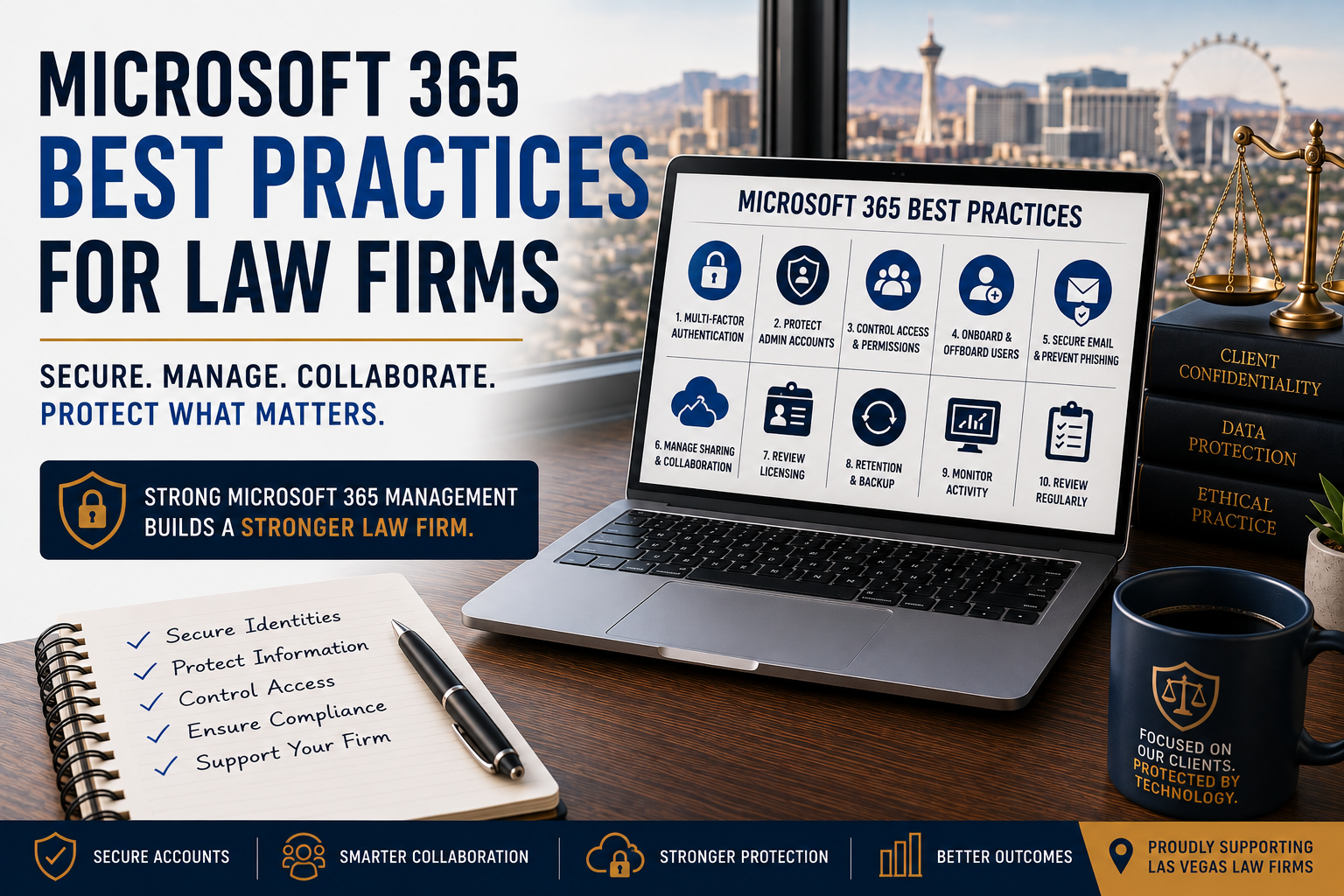
A well-managed Microsoft 365 environment should address at least these 10 areas (and a few more):
- Require Multi-Factor Authentication
- Protect administrator accounts
- Control user access and permissions
- Create a consistent onboarding and offboarding process
- Secure email against phishing and impersonation
- Manage SharePoint, OneDrive, and external sharing
- Review Microsoft 365 licensing
- Establish appropriate retention and backup strategies
- Monitor the environment for suspicious activity
- Review Microsoft 365 configuration regularly
The exact configuration will vary by firm.
A 10-person law firm operating primarily from one Las Vegas office may have different requirements than a 50-person firm with remote employees, multiple practice groups, and more complex client requirements.
The objective isn't to enable every Microsoft security feature simply because it exists.
It's to configure Microsoft 365 appropriately for how your firm works, what information it handles, and what risks it needs to manage.
-
Require Multi-Factor Authentication
If your law firm makes only one Microsoft 365 security improvement, Multi-Factor Authentication should be near the top of the list.
A password by itself is a relatively weak barrier.
Passwords can be:
- Stolen through phishing
- Reused across services
- Guessed
- Exposed in a data breach
- Accidentally shared
- Captured by malicious software
Multi-Factor Authentication, commonly called MFA, requires an additional form of verification before access is granted.
That means obtaining an employee's password alone may not be enough for an attacker to access the account.
Why MFA Matters So Much for Law Firms
Consider what an attorney's Microsoft account may provide access to:
- Calendars
- Contacts
- OneDrive files
- SharePoint sites
- Teams
- Other applications connected to Microsoft identity
A compromised account can therefore become much more than an email problem.
It can become an identity problem.
An attacker who gains access to a mailbox may also be able to study previous conversations, learn how the firm communicates, and use that information to create convincing fraudulent messages.
That's one reason identity security has become such an important part of protecting Microsoft 365.
MFA Shouldn't Be Limited to Attorneys
Avoid protecting only the people you believe have access to the most sensitive information.
An administrative employee's account may still contain valuable information or provide an attacker with a foothold into the organization.
As a general practice, firms should evaluate MFA across all user accounts, along with stronger protections for privileged administrative access.
-
Protect Microsoft 365 Administrator Accounts
Not every Microsoft 365 account has the same level of authority.
Administrative accounts can potentially make significant changes to the environment.
Depending on the role, an administrator may be able to:
- Create and delete users
- Reset passwords
- Modify security settings
- Change permissions
- Manage applications
- Configure email
- Assign licenses
- Access other administrative functions
That means administrator accounts deserve additional protection.
Don't Use Powerful Administrative Access for Everyday Work
An employee who needs administrative privileges shouldn't necessarily perform routine activities using the same highly privileged account.
A better approach is to separate everyday user activity from administrative activity where appropriate.
For example, someone responsible for Microsoft 365 administration might have:
A normal user account for email, Teams, documents, and everyday work.
And:
A separate administrative account used only when privileged access is required.
This reduces unnecessary exposure of powerful credentials.
Give People Only the Access They Need
Not everyone who performs an administrative task needs unrestricted control over Microsoft 365.
Microsoft provides different administrative roles that can be used to assign more specific responsibilities.
The principle is called least privilege:
Give a person or account the access required to perform its job, but not substantially more.
That principle applies beyond administrators.
It should influence how permissions are handled throughout the Microsoft 365 environment.
-
Control User Access and Permissions
Over time, permissions tend to accumulate.
An employee joins a project.
They receive access to a SharePoint site.
Their role changes.
They're added to another group.
Three years later, nobody remembers why they have access to half of what they can see.
This isn't unique to law firms.
It's a common technology-management problem.
But law firms may hold confidential information across clients, matters, departments, and business functions, making permission management particularly important.
Ask "Who Needs Access?" Instead of "Who Might Need Access?"
Convenience can encourage organizations to grant broad permissions.
It's easier to give everyone access to a shared location than carefully determine who actually needs it.
But permissions should reflect business requirements.
For important repositories, ask:
- Who needs access?
- What type of access do they need?
- Should they be able to modify or delete information?
- Does the entire firm need access?
- Are former team members still included?
- Are external users involved?
- When was access last reviewed?
The objective isn't to make information difficult for employees to use.
It's to ensure that access is intentional.
Conditional Access Can Add Context to Authentication
MFA is an important control, but authentication doesn't have to be an identical experience in every circumstance.
Depending on the firm's Microsoft licensing and configuration, Conditional Access can allow organizations to apply access policies based on factors such as:
- User or group
- Application
- Device
- Location
- Sign-in risk
- Other conditions
For example, a firm may decide that certain access scenarios require additional verification or should be blocked altogether.
This can create more nuanced security than simply asking every user for the same authentication step in every situation.
However, Conditional Access shouldn't be implemented casually.
Poorly planned policies can disrupt legitimate employees or, in a worst-case scenario, create administrative access problems.
Policies should be designed, tested, documented, and maintained by someone who understands the environment.
-
Create a Consistent Employee Onboarding Process
Microsoft 365 security begins before a new employee sends their first email.
When someone joins the firm, there should be a repeatable process for creating and configuring their account.
That process might include:
- Creating the Microsoft 365 account
- Assigning the appropriate license
- Configuring MFA
- Assigning security groups
- Providing appropriate SharePoint or Teams access
- Configuring email
- Applying required security policies
- Setting up the employee's computer
- Confirming access to required business applications
The important word is appropriate.
A new legal assistant shouldn't automatically receive permissions copied from another employee simply because that employee seems to have a similar job.
Access should reflect the new employee's actual responsibilities.
Use Role-Based Onboarding Where Practical
One way to make onboarding more consistent is to establish common technology requirements for different roles.
For example:
Attorney
May require access to:
- Microsoft 365
- Practice management
- Document management
- Specific client or matter resources
- Legal research applications
- Remote-access capabilities
Administrative Employee
May require a different combination of:
- Microsoft 365
- Shared mailboxes
- Departmental SharePoint resources
- Accounting or scheduling applications
- Other business systems
These aren't universal templates.
Every law firm operates differently.
But documenting common access requirements reduces guesswork and makes onboarding easier to audit later.
-
Offboarding Is a Security Process, Not Just an HR Task
When an employee leaves the firm, Microsoft 365 access needs prompt attention.
Offboarding may involve:
- Blocking the former employee's sign-in
- Revoking active sessions
- Resetting credentials where appropriate
- Reviewing Multi-Factor Authentication methods
- Preserving required email and data
- Transferring access to business information
- Removing the employee from groups
- Reviewing shared resources
- Reclaiming or reassigning licenses
- Removing access to connected applications
The exact steps depend on the circumstances and the firm's policies.
What matters is having a documented process.
Don't Immediately Delete Everything
Blocking someone's access and deleting their information are two different actions.
The firm may need to retain:
- OneDrive files
- Business records
- Client communications
- Other information
for operational, legal, contractual, or retention reasons.
That's why offboarding should involve coordination between the appropriate firm leadership and the people responsible for technology.
The immediate objective is generally to secure access.
Data disposition should follow the firm's applicable retention and business requirements.
Employee Changes Need Attention Too
Onboarding and offboarding get most of the attention, but there's a third event worth planning for:
role changes.
An employee may move between departments, become a partner, take on different responsibilities, or stop working with a particular group of matters.
When that happens, organizations often add the new permissions but forget to remove the old ones.
Over time, that creates permission creep.
A good Microsoft 365 management process should therefore address three events:
Join → Change → Leave
When someone joins, give them the access they need.
When their role changes, reevaluate that access.
When they leave, secure and remove access according to the firm's process.
That simple framework can prevent a surprising number of permission problems.
Microsoft 365 Security Isn't "Set It and Forget It"
A law firm can configure Microsoft 365 carefully today and still need changes next year.
Employees come and go.
Microsoft introduces new capabilities.
Licensing changes.
Threats evolve.
The firm adopts new applications.
Business requirements change.
That's why Microsoft 365 should be treated as an actively managed business platform, not simply a collection of Office applications.
The question isn't just:
"Do we have Microsoft 365?"
It's:
"Is our Microsoft 365 environment still configured appropriately for the way our firm operates today?"
That question deserves to be revisited regularly.
-
Strengthen Email Security Beyond the Password
Email remains one of the most important communication tools in a law firm.
It's also one of the most attractive targets for attackers.
A convincing phishing message doesn't necessarily need malicious software to succeed. It may simply persuade an employee to:
- Enter credentials into a fake login page
- Approve an unexpected MFA request
- Open a malicious attachment
- Change payment information
- Send sensitive information
- Purchase gift cards
- Follow fraudulent instructions that appear to come from an attorney or client
That means protecting email requires more than requiring strong passwords.
A well-managed Microsoft 365 environment should combine identity protection, technical email controls, and employee awareness.
Understand Phishing, Spoofing, and Impersonation
These terms are sometimes used interchangeably, but they describe different techniques.
Phishing
A phishing message attempts to convince someone to take an unsafe action.
For example, an employee might receive a message claiming:
"Your Microsoft 365 password expires today. Click here to keep your account active."
The attacker hopes the employee follows the link and enters credentials into a fraudulent website.
Spoofing
Spoofing attempts to make a message appear to originate from a different sender or domain.
Technical email protections can help identify and reject certain forms of spoofed mail.
Impersonation
An attacker may not need to spoof an email address at all.
They might register a similar-looking domain or create a display name that appears to belong to a managing partner, client, vendor, or employee.
For example, an attacker could send a message appearing to come from a firm's managing partner:
"I'm heading into a meeting. Please send me the wiring information for that payment immediately."
The email may look convincing even though it originated outside the organization.
That's why email security needs multiple layers.
Configure Email Authentication for Your Domain
Law firms should also make sure their domains are appropriately configured to help receiving email systems determine which services are authorized to send mail on their behalf.
You may hear your technology provider refer to:
- SPF
- DKIM
- DMARC
Leadership doesn't need to become expert in these technologies.
The important thing to understand is what they collectively help accomplish.
They provide mechanisms that can help email systems verify whether messages claiming to come from your domain are legitimate and establish policies for handling authentication failures.
Ask your technology partner:
"Are SPF, DKIM, and DMARC properly configured for our domains?"
The answer should not simply be:
"We use Microsoft 365, so yes."
These controls require configuration and ongoing attention, particularly when other applications send email using the firm's domain.
Technical Controls Don't Eliminate the Human Element
Even a well-configured email security system can't guarantee that every malicious message will be stopped.
Attackers deliberately design messages to look legitimate.
That's why employees need to recognize warning signs such as:
- Unexpected requests for credentials
- Unusual payment instructions
- Sudden changes to banking information
- Requests to bypass normal procedures
- Unexpected MFA prompts
- Suspicious attachments
- Messages creating artificial urgency
- Slightly altered sender addresses or domains
Security awareness training can help employees recognize these situations and understand how to report them.
At ANAX Business Technology, cybersecurity services such as advanced security protections and awareness training may be provided through our cybersecurity bundle rather than being automatically included in every managed IT agreement.
That's an important distinction.
Microsoft 365 management and cybersecurity overlap, but they aren't necessarily the same service.
-
Understand the Difference Between OneDrive and SharePoint
OneDrive and SharePoint can both store files.
That sometimes leads organizations to use them interchangeably.
A simple way to think about the distinction is:
OneDrive is generally appropriate for an individual's working files.
SharePoint is generally appropriate for information that belongs to a team or the organization.
This distinction matters when employees leave.
Suppose an employee stores an important departmental procedure only in their personal OneDrive.
The information may technically belong to the firm, but operationally it has been organized around one employee's account.
If the same information belongs to an entire department, a properly managed SharePoint location may make more sense.
Ask Who Owns the Information
When deciding where information should live, ask:
"Does this file primarily belong to an individual, or does it belong to the organization?"
An employee drafting a working document may reasonably begin in OneDrive.
A finalized resource used by an entire practice group may belong in SharePoint.
The objective isn't to create rigid rules for every document.
It's to establish enough structure that important organizational information doesn't become scattered across individual accounts.
Don't Turn SharePoint Into Another File Server by Accident
SharePoint can be a powerful collaboration and information-management platform.
But simply moving an old folder structure into SharePoint doesn't automatically create a well-designed environment.
Before building SharePoint sites and document libraries, think about:
- Who needs access?
- How should information be organized?
- Which departments or groups need separate spaces?
- What information may be shared externally?
- Who is responsible for managing access?
- How will permissions be reviewed?
- What happens when employees change roles?
A poorly organized SharePoint environment can become difficult to navigate and difficult to secure.
More sites, folders, and permissions aren't necessarily better.
Good information architecture matters.
-
Control External Sharing
Microsoft 365 makes collaboration convenient.
That convenience needs boundaries.
Employees may need to share documents with:
- Clients
- Co-counsel
- Experts
- Consultants
- Accountants
- Vendors
- Other outside parties
External sharing can be completely legitimate.
The goal shouldn't necessarily be to disable it everywhere.
The goal should be to make sharing intentional and appropriate.
Ask:
- Who is allowed to share externally?
- Which SharePoint sites permit external sharing?
- Can employees create anonymous sharing links?
- Do links expire?
- Can access be limited to specific people?
- Who reviews external access?
- How is access removed when collaboration ends?
The appropriate answers will vary by firm.
What matters is that external sharing is governed by a policy rather than whatever default settings happen to exist.
Convenience and Security Need to Coexist
It's possible to make a Microsoft 365 environment so restrictive that employees begin looking for ways around it.
That's not a good outcome.
If employees can't conveniently share a large document through an approved system, they may turn to an unapproved file-sharing service.
If accessing information remotely is unnecessarily difficult, they may develop their own workaround.
The objective isn't maximum restriction.
It's secure usability.
Give employees practical, approved ways to accomplish legitimate business tasks while putting appropriate controls around the information.
-
Manage Microsoft Teams With the Same Care as Email and Files
Teams can become much more than a chat application.
Depending on how the firm uses Microsoft 365, Teams may provide access to:
- Conversations
- Meetings
- Shared files
- SharePoint content
- External collaborators
- Applications
- Other organizational information
That means Teams deserves governance too.
Questions to consider include:
- Who can create new Teams?
- How should Teams be named?
- Who can invite outside users?
- Who owns each Team?
- What happens to inactive Teams?
- What information should employees share there?
- How are permissions reviewed?
Without some governance, organizations can accumulate large numbers of Teams and channels with unclear ownership and overlapping purposes.
Understand What Happens Behind Teams
This is useful even for nontechnical leaders to understand.
Microsoft Teams often acts as a front end to other Microsoft 365 services.
For example, files shared within a Team may actually be stored in SharePoint.
Files shared through certain chats may be associated with OneDrive.
That means a decision about Teams can also become a decision about:
- File storage
- Permissions
- External sharing
- Information lifecycle
You don't need to know every technical detail.
But leadership should understand that Teams isn't an isolated application.
It's part of the broader Microsoft 365 environment.
-
Review Sharing and Permissions Regularly
Remember the Join → Change → Leave framework from earlier?
The same principle applies to shared information.
Permissions that were appropriate two years ago may no longer make sense today.
A periodic review should look for things such as:
- Former employees who still appear in groups
- External guests who no longer need access
- Employees who changed roles
- Old sharing links
- Sites with unnecessarily broad access
- Teams without clear owners
- Resources nobody actively manages
How often these reviews should occur depends on the firm's environment and requirements.
The important thing is that they happen intentionally rather than only after a problem occurs.
Be Especially Careful With "Everyone" Permissions
Broad access can be convenient.
Sometimes it's appropriate.
A company holiday calendar probably doesn't need elaborate restrictions.
Sensitive client, financial, HR, or administrative information is different.
Before granting firm-wide access, ask:
"Does everyone actually need this?"
If the answer is no, use a more appropriate group or permission structure.
This is another application of least privilege:
Give people the access they need to perform their work without automatically giving them access to everything else.
File Organization Is Becoming Even More Important Because of AI
There is another reason law firms should pay attention to Microsoft 365 permissions and information organization.
Artificial intelligence.
Microsoft Copilot and other AI capabilities can make it dramatically easier for authorized users to discover, summarize, and work with information.
That's useful.
It also makes existing permissions more important.
Imagine an employee technically has access to hundreds of documents they never knew existed.
Historically, those documents might have been buried several folders deep in a SharePoint site.
The employee technically had permission.
They simply had no reason to go looking for them.
Now introduce an AI assistant capable of helping users locate and summarize information they already have permission to access.
The underlying problem isn't necessarily AI.
The problem may be that the employee had too much access in the first place.
AI Makes Permission Hygiene More Visible
This leads to an important principle for law firms considering Microsoft Copilot:
Don't wait until after deploying AI to discover that your Microsoft 365 permissions are messy.
Before introducing AI broadly, review:
- SharePoint permissions
- Teams memberships
- External users
- Overshared sites
- File locations
- Information ownership
- Employee access
- Legacy content
AI can make information easier to find.
That's one of its strengths.
But before making discovery easier, make sure the people doing the discovering are supposed to have access to the information.
We'll explore that issue much more deeply in our upcoming guide to Microsoft Copilot for law firms.
Avoid the "We Use Microsoft 365, So We're Secure" Assumption
Microsoft provides an extensive platform with significant security and management capabilities.
But purchasing licenses doesn't automatically configure those capabilities appropriately for your law firm.
There is a meaningful difference between:
Owning Microsoft 365
and
Operating a well-managed Microsoft 365 environment.
Good management requires ongoing decisions about:
- Identity
- Authentication
- Permissions
- Sharing
- Devices
- Licensing
- Data protection
- Administration
- Monitoring
The technology provides the capabilities.
Your organization still needs to decide how those capabilities should be used.
The Goal Is Controlled Collaboration
Law firms need employees to collaborate.
They also need to protect information.
Those objectives aren't mutually exclusive.
A well-managed Microsoft 365 environment should make it reasonably easy for authorized people to:
Access the information they need
↓
Collaborate with the right people
↓
Share information appropriately
↓
Protect sensitive resources
↓
Remove access when it's no longer needed
That's the framework.
The objective isn't to lock everything down.
It's to make access intentional, manageable, and appropriate for the business.
Additional areas that inform a well-managed environment:
-
Make Sure You're Properly Licensed for the Features You Use
Microsoft 365 licensing can be complicated.
Different licenses provide different combinations of productivity, security, identity, device management, compliance, and other capabilities.
That creates two opportunities for law firms:
Avoid paying for licenses and features you don't need.
And:
Make sure you're properly licensed for the features you actually use.
Both matter.
A good Microsoft 365 licensing review isn't simply an exercise in finding the cheapest possible combination of licenses.
It's about finding the right combination.
Don't Confuse "The Feature Works" With "We're Properly Licensed"
This is one of the more confusing aspects of Microsoft cloud licensing.
In some situations, purchasing a premium license can expose administrative functionality within the tenant that appears capable of affecting more users than the organization has licensed.
That can create an understandable assumption:
"If Microsoft lets us turn it on, doesn't that mean we're licensed to use it?"
Not necessarily.
Technical availability and licensing entitlement are two different things.
Microsoft documents specific licensing requirements for different capabilities. For example, Microsoft Entra Conditional Access requires an appropriate P1 license, while risk-based Conditional Access uses Microsoft Entra ID Protection capabilities that require P2. Microsoft also provides feature-specific licensing scenarios for products such as Identity Governance and Privileged Identity Management.
The lesson for law firm leadership isn't to memorize Microsoft's licensing rules.
It's much simpler:
Don't assume that because a Microsoft 365 feature can be enabled, everyone benefiting from that feature is properly licensed to use it.
A Common Example: "Can't We Just Buy One Entra P2 License?"
This is a conversation we occasionally have with clients.
A firm wants a Microsoft Entra ID P2 capability.
Someone notices that adding a premium license makes additional functionality visible within the Microsoft tenant and reasonably asks:
"Why can't we just buy one P2 license and use the feature for everyone?"
The answer depends on the specific feature and Microsoft's applicable licensing requirements.
For example, Microsoft currently documents that risk-based Conditional Access policies require Microsoft Entra ID Protection, which is an Entra ID P2 capability. Microsoft also describes Microsoft-managed risk policies behaving differently when a tenant doesn't have enough P2 licenses to cover the relevant users.
So the correct question isn't:
"Can our administrator turn this feature on?"
It's:
"Which users require which licenses for the way we intend to deploy this feature?"
That's a much safer way to approach Microsoft licensing.
Why Proper Licensing Matters
Mis-licensing isn't merely a technical detail.
It can create several business problems.
Compliance
Your organization needs to use Microsoft products according to the applicable licensing terms.
Being able to configure a capability doesn't, by itself, establish that every use of that capability is properly licensed.
Budgeting
Suppose leadership approves a security initiative believing it requires one premium license.
Later, the firm determines that the intended deployment requires premium licensing for substantially more users.
The project's actual recurring cost may be very different from the amount originally approved.
Understanding licensing before deployment creates a more accurate technology budget.
Security
Licensing can also affect which security capabilities are actually available to particular users or scenarios.
For example, Microsoft's current documentation distinguishes standard Conditional Access capabilities from P2-dependent risk-based policies.
Leadership shouldn't assume the organization has a particular protection simply because someone remembers purchasing "a premium Microsoft license."
Verify both the licensing and the configuration.
Optimize Licenses Without Cutting the Wrong Ones
None of this means your firm should simply purchase the most expensive Microsoft license for every employee.
That can create unnecessary spending.
Different employees may legitimately require different capabilities.
For example, licensing requirements may vary based on:
- Job responsibilities
- Device-management requirements
- Security requirements
- Compliance requirements
- Applications used
- Administrative responsibilities
A useful licensing review should therefore ask:
Who has each license?
Why do they have it?
Which features are we actually using?
Are we paying for capabilities we don't need?
Are we using capabilities that require licensing we haven't appropriately assigned?
Have employee role changes affected licensing needs?
The goal is neither overlicensing nor underlicensing.
It's intentional licensing.
And because Microsoft changes products, bundles, and licensing requirements over time, verify important licensing decisions against Microsoft's current terms rather than relying indefinitely on what was true when the tenant was originally configured.
-
Understand the Difference Between Retention and Backup
Another area that can create confusion is Microsoft 365 data protection.
Microsoft provides native retention, recovery, resiliency, and compliance capabilities across its services.
Organizations can also use third-party backup products.
Those aren't necessarily interchangeable.
A retention policy is generally concerned with keeping or managing information according to defined requirements.
A backup strategy is concerned with the organization's ability to recover information after data loss or another event.
Depending on the firm's requirements, Microsoft-native capabilities may address some needs while an additional backup solution addresses others.
The right answer depends on:
- What information needs protection
- How long it needs to be retained
- How quickly it needs to be recovered
- What types of deletion or loss scenarios need to be addressed
- Legal or contractual requirements
- Microsoft licensing
- The firm's recovery objectives
Avoid reducing the discussion to:
"Does Microsoft back up our data?"
A more useful question is:
"If this information disappears tomorrow, how do we recover it, and does that process meet our firm's requirements?"
Test Recovery Instead of Assuming It Works
Whatever approach your firm uses, recovery shouldn't exist only in theory.
Ask your technology partner to explain:
- What Microsoft 365 information is protected
- How it is protected
- How long it can be recovered
- Who can initiate a recovery
- What recovery looks like
- Whether important recovery processes are tested
A green checkmark on a dashboard can tell you that a process ran.
It doesn't necessarily tell you whether your firm can recover exactly what it needs when something goes wrong.
-
Monitor Microsoft 365 for Suspicious Activity
Microsoft 365 shouldn't only be administered when an employee requests a password reset.
It should also be monitored appropriately.
Depending on the firm's licensing, security tools, and services, useful signals may include:
- Suspicious sign-in activity
- Risky users or sign-ins
- Unusual administrative activity
- Security alerts
- Changes to important configurations
- Malicious email activity
- Other indicators requiring investigation
Microsoft's available monitoring and identity-protection capabilities vary by license. For example, its current Entra documentation shows different levels of access to sign-in, risk, and security information across Free, P1, and P2 licensing.
But there's a larger point here:
Generating an alert isn't the same thing as responding to it.
Your firm should understand who is responsible for reviewing meaningful security alerts and what happens when something requires investigation.
-
Review Microsoft 365 Regularly
Microsoft 365 isn't something you configure once and leave untouched for the next five years.
The environment changes.
Your firm changes.
Microsoft changes.
Employees join, leave, and change roles.
New applications are connected.
SharePoint sites are created.
External users receive access.
Licenses change.
Security capabilities evolve.
That's why Microsoft 365 deserves a recurring review.
Depending on the environment, that review may examine:
- User accounts
- Administrative accounts
- MFA
- Conditional Access
- Licenses
- Groups and permissions
- External users
- SharePoint and Teams
- Email security
- Security alerts
- Retention and recovery
- Connected applications
- Administrative roles
Not every item needs the same review frequency.
The important thing is that someone owns the process.
The ANAX Microsoft 365 Management Framework
A simple way to think about Microsoft 365 management is through six questions:
- IDENTIFY
Who is accessing the environment?
Review users, administrators, authentication, and account lifecycle.
- PROTECT
How are identities, email, devices, and information protected?
Use appropriate security controls based on the firm's requirements.
- CONTROL
Who can access and share information?
Manage permissions, SharePoint, Teams, OneDrive, and external collaboration intentionally.
- LICENSE
Are users properly licensed for what they're actually using?
Eliminate unnecessary spending without creating licensing gaps.
- RECOVER
What happens if important information is lost?
Understand retention, backup, and recovery capabilities.
- REVIEW
Is the environment still configured appropriately?
Revisit Microsoft 365 as the firm, technology, and risks change.
Identify → Protect → Control → License → Recover → Review
The objective isn't to make Microsoft 365 complicated.
It's to make its management deliberate.
A 15-Point Microsoft 365 Checklist for Law Firms
If you're unsure how well your Microsoft 365 environment is being managed, start with these 15 questions:
- Is MFA appropriately implemented across our users?
- Are privileged administrator accounts separately protected?
- Are administrative privileges limited appropriately?
- Do we have a documented Join → Change → Leave process?
- Are former employees promptly blocked from accessing Microsoft 365?
- Are SPF, DKIM, and DMARC appropriately configured for our email domains?
- Are phishing and impersonation protections appropriate for our environment?
- Do employees understand when to use OneDrive versus organizational SharePoint locations?
- Is external sharing intentionally controlled?
- Are Teams, SharePoint, and group permissions periodically reviewed?
- Are users properly licensed for the Microsoft capabilities they use?
- Are we paying for licenses or subscriptions we no longer need?
- Do we understand our retention, backup, and recovery strategy?
- Does someone review meaningful Microsoft 365 security alerts?
- Is the environment reviewed regularly rather than only when something breaks?
If several answers are "I don't know," that's useful information.
It doesn't automatically mean the environment is insecure.
It means leadership needs greater visibility into how Microsoft 365 is being managed.
Microsoft 365 Is a Platform, Not Just an Office Subscription
This is perhaps the most important takeaway from this guide.
Microsoft 365 isn't simply:
Word + Excel + Outlook + Teams
For many organizations, it has become part of the underlying technology platform for:
- Identity
- Authentication
- Collaboration
- File storage
- Device access
- Security
- Information management
That makes Microsoft 365 administration a business issue, not merely a software-licensing issue.
The firm doesn't need its managing partners to become Microsoft administrators.
It does need someone qualified to manage the environment intentionally.
Why This Matters Before Your Law Firm Deploys AI
There's another reason to get Microsoft 365 management right now.
Microsoft Copilot.
AI can make it easier for employees to find, summarize, and work with information they're authorized to access.
That's potentially extremely useful.
But as we discussed earlier, it can also make existing information-management and permission problems more visible.
Before deploying Microsoft Copilot broadly, firms should have confidence in areas such as:
- User identities
- Permissions
- SharePoint organization
- Teams memberships
- External access
- Licensing
- Information governance
Think of it this way:
Don't use AI to compensate for a poorly governed Microsoft 365 environment.
Build the foundation first.
Then evaluate what AI can add.
We'll explore that in our next guide on Microsoft Copilot for law firms.
How ANAX Business Technology Helps Manage Microsoft 365
At ANAX Business Technology, we view Microsoft 365 as part of the client's broader technology environment, not simply a collection of software licenses.
That means helping clients think through questions such as:
- Are accounts appropriately protected?
- Are permissions appropriate?
- Are employees being onboarded and offboarded consistently?
- Is email configured appropriately?
- Are Microsoft licenses aligned with the features being used?
- Are there opportunities to eliminate unnecessary licensing?
- Does the firm's recovery strategy meet its needs?
- Is the environment ready for new capabilities such as Microsoft Copilot?
We also believe clients should understand why a particular Microsoft license or configuration is being recommended.
"Because you need it" isn't a particularly useful explanation.
A technology partner should be able to explain the business or security requirement behind the recommendation.
Want a Second Look at Your Microsoft 365 Environment?
If your law firm has been using Microsoft 365 for years but isn't sure whether the environment is still configured appropriately, ANAX Business Technology can help.
We can review your existing Microsoft 365 environment, identify areas that deserve attention, and help you understand practical next steps based on your firm's needs.
Schedule a consultation with ANAX Business Technology.
Final Thoughts
Microsoft 365 can be an excellent platform for a law firm.
But purchasing Microsoft 365 is only the beginning.
A well-managed environment requires ongoing attention to:
Identity
Security
Permissions
Sharing
Licensing
Recovery
Monitoring
Start with MFA.
Protect administrative access.
Manage permissions intentionally.
Create consistent onboarding and offboarding processes.
Control external sharing without making collaboration unnecessarily difficult.
Understand what your Microsoft licenses actually entitle your users to do.
Know how you'll recover important information.
And review the environment regularly.
Most importantly, remember this distinction:
A Microsoft 365 feature being available doesn't necessarily mean it's properly configured, appropriately licensed, or being actively managed.
Those are three separate questions.
A good technology partner should help your law firm answer all three.