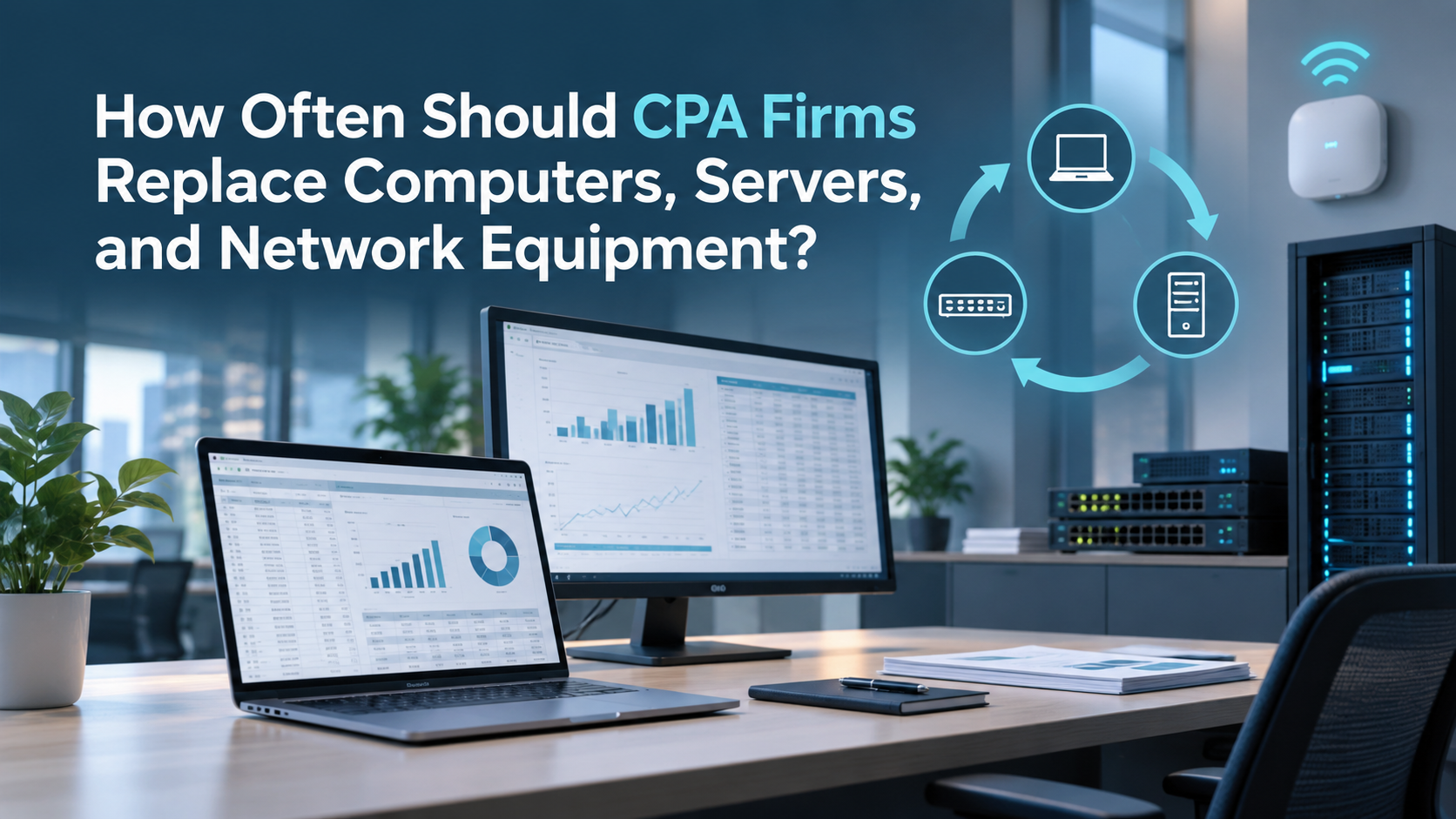
CPA firms should typically plan to replace business laptops every 3 to 5 years, business desktops every 4 to 5 years, servers every 5 to 7 years, firewalls every 4 to 6 years, network switches every 5 to 7 years, Wi-Fi access points every 4 to 6 years, and UPS batteries every 3 to 5 years depending on conditions.
For CPA firms with 10 to 50 employees, hardware replacement should not be handled only when something breaks. It should be part of a planned technology lifecycle that supports employee productivity, cybersecurity, tax-season readiness, business continuity, and long-term budgeting.
The goal is not to replace every device the moment it reaches a certain age.
The goal is to know which systems are aging, which systems create business risk, which systems affect employee productivity, and which replacements should be budgeted before they become urgent.
A practical hardware lifecycle plan helps CPA firms answer three questions:
- What technology do we depend on?
- When is that technology likely to need replacement?
- How do we budget for replacement before it disrupts the firm?
Why Hardware Lifecycle Planning Matters for CPA Firms
CPA firms depend on technology during deadline-driven work.
A slow workstation may be annoying in the summer.
During tax season, that same workstation may affect billable productivity, employee morale, client responsiveness, and support volume.
A server that is approaching the end of its useful life may continue running today, but if it fails during a busy filing period, the impact may be much larger than the cost of planning ahead.
A firewall that is out of warranty or no longer receiving updates may create security and continuity concerns.
A failing scanner or unstable Wi-Fi access point may interfere with document processing, client intake, or seasonal staff productivity.
That is why replacement planning should not be viewed as a purely technical exercise.
It is part of business planning.
For a CPA firm, hardware lifecycle decisions affect:
- Employee productivity
- Tax-season readiness
- Cybersecurity
- Backup and recovery
- Remote access
- Application performance
- Vendor support
- Technology budgeting
- Business continuity
- Client service
A device does not need to fail completely to become a business problem.
Sometimes the cost is hidden in lost time, recurring support tickets, employee frustration, and increased risk.
The CPA Firm Hardware Lifecycle Framework
We recommend organizing hardware lifecycle planning into seven categories:
- Workstations
- Servers
- Firewalls
- Network Switches
- Wi-Fi Access Points
- UPS Battery Backup
- Printers, Scanners, and Peripherals
Each category has a different planning window and business impact.
A laptop used every day by a tax professional should not be evaluated the same way as a conference-room monitor.
A server supporting critical accounting applications should not be treated the same way as a spare workstation.
The best lifecycle plans consider both age and role.
The right question is not simply:
“How old is this device?”
The better question is:
“What happens to the firm if this device becomes slow, unreliable, unsupported, or unavailable?”
Typical Replacement Planning Ranges
The following ranges are useful planning guidelines:
| Technology | Typical Planning Range |
| Business laptops | 3–5 years |
| Business desktops | 4–5 years |
| Servers | 5–7 years |
| Firewalls | 4–6 years |
| Network switches | 5–7 years |
| Wi-Fi access points | 4–6 years |
| UPS batteries | 3–5 years, depending on conditions |
| Monitors | 5–7+ years |
These are not automatic replacement rules.
A four-year-old laptop may still perform well.
A three-year-old laptop used heavily for tax applications, remote access, large documents, Teams meetings, and multiple monitors may already be slowing someone down.
A seven-year-old server may still be functioning.
But if it supports critical firm systems, has aging hardware, limited warranty coverage, constrained storage, or recovery concerns, leadership should understand the risk.
Lifecycle planning is about visibility.
It helps the firm avoid surprise replacements and make better decisions about timing, budget, and business impact.
-
How Often Should CPA Firms Replace Workstations?
Workstations include laptops and desktops used by employees, partners, seasonal staff, and administrative personnel.
For many CPA firms, workstations are the most visible hardware lifecycle issue because employees feel the impact every day.
Typical planning ranges:
- Business laptops: 3 to 5 years
- Business desktops: 4 to 5 years
The exact timing depends on the device, role, usage, software requirements, and performance expectations.
Why Workstations Matter So Much During Tax Season
During tax season, employees may run multiple applications at once.
A typical employee may use:
- Tax preparation software
- Accounting applications
- Microsoft Outlook
- Teams
- Excel
- Word
- Browser-based client portals
- Document management systems
- Scanning workflows
- PDF tools
- Remote access
- Multifactor authentication
- Research tools
- Multiple monitors
That workload can expose performance issues quickly.
A computer that feels “good enough” during a lighter period may become a bottleneck during sustained high-volume work.
Slow workstations can create practical problems:
- Longer startup times
- Application delays
- Freezing or crashing
- Slow document opening
- Poor Teams performance
- Printing or scanning issues
- Remote-access problems
- More help desk tickets
- Employee frustration
- Reduced productivity during deadline periods
A workstation replacement plan helps the firm avoid discovering these issues at the worst possible time.
Use Role-Based Replacement Planning
Not every employee needs the same hardware replacement schedule.
A CPA firm may have different user groups:
- Partners
- Tax professionals
- Audit professionals
- Bookkeeping staff
- Administrative staff
- Seasonal employees
- Interns
- Remote employees
- Power users
- Light users
A tax professional working heavily in multiple applications may need a stronger and newer device than a user whose role is less demanding.
A remote employee may require a reliable laptop, docking station, monitors, webcam, headset, and secure remote-access setup.
A seasonal employee may use temporary hardware, but that hardware still needs to be reliable enough to avoid slowing the firm down.
Replacement planning should consider:
- User role
- Application workload
- Remote-work needs
- Device performance
- Device age
- Warranty status
- Security compatibility
- Employee productivity
- Support history
The firm does not need to overbuy for every role.
But it should avoid under-equipping employees whose work is critical to revenue, deadlines, or client service.
A Simple Workstation Replacement Formula
One of the easiest ways to plan workstation replacement is to spread replacements across a predictable cycle.
For example, a 25-user CPA firm using a five-year workstation lifecycle can estimate:
25 workstations ÷ 5 years = approximately 5 workstation replacements per year
That is easier to budget than replacing 15 or 20 computers at once after several years of delay.
Using the same approach:
| Firm Size | Five-Year Workstation Cycle |
| 10 users | About 2 replacements per year |
| 25 users | About 5 replacements per year |
| 50 users | About 10 replacements per year |
This does not mean every firm must replace exactly that number every year.
But it gives leadership a practical budgeting baseline.
If the firm skipped replacements for several years, it may need a catch-up plan.
If the firm recently refreshed most devices, replacement volume may be lower for a period.
The important point is to make workstation replacement predictable rather than reactive.
Signs a Workstation Should Be Replaced Sooner
Age is only one factor.
A workstation may need replacement sooner if it shows signs such as:
- Frequent freezing or crashes
- Slow startup
- Slow application performance
- Limited memory or storage
- Battery failure
- Incompatibility with required software
- Unsupported operating system
- Recurring hardware repairs
- Poor video conferencing performance
- Inability to support multiple monitors
- Security tool performance issues
- Frequent employee complaints
- High support-ticket volume
A device that consumes recurring support time may cost more than it appears.
Even if the computer technically still works, the hidden cost may show up in lost productivity and frustration.
Do Not Forget Monitors, Docking Stations, and Peripherals
A workstation is more than the computer itself.
Employee productivity may also depend on:
- Monitors
- Docking stations
- Keyboards
- Mice
- Webcams
- Headsets
- Power adapters
- Laptop batteries
- Scanners
- Local printers
- Surge protection
Monitors often last longer than laptops and desktops, commonly 5 to 7 years or more, but they still deserve planning attention.
A modern laptop paired with an unreliable dock, poor monitor setup, or failing peripheral can still create daily friction.
For remote or hybrid employees, peripherals may have an even larger impact.
A tax professional working long hours on a small laptop screen without proper equipment is not being set up for efficient work.
-
How Often Should CPA Firms Replace Servers?
Many CPA firms in the 10- to 50-employee range still operate servers.
That is not automatically a sign of outdated technology.
Some tax, accounting, document management, or line-of-business applications still depend on traditional Windows infrastructure. Some vendor “cloud” offerings are actually hosted virtual desktops or hosted servers rather than true browser-based SaaS platforms.
For this reason, server planning should be thoughtful rather than ideological.
Typical planning range:
- Servers: 5 to 7 years
A server may support:
- File shares
- Application hosting
- Tax software
- Accounting software
- Document management
- Authentication
- Permissions
- Printing
- Scanning
- Remote access
- Backup systems
- Vendor integrations
If that server fails, the impact can be much larger than a single workstation failure.
That is why server lifecycle planning should begin before the server reaches a crisis point.
Server Replacement Should Be a Strategy Conversation
When a server approaches the later years of its lifecycle, the question should not automatically be:
“What server should we buy next?”
It should also not automatically be:
“How fast can we move everything to the cloud?”
The better question is:
“Which infrastructure model best supports our applications, workflows, security requirements, remote-access needs, recovery expectations, and five- to seven-year cost?”
For some CPA firms, replacing the server may still make sense.
For others, moving some workloads to a hosted environment may make sense.
For others, a hybrid strategy may be more appropriate.
The right decision depends on factors such as:
- Application requirements
- Vendor roadmaps
- Remote-work needs
- Performance
- Security
- Backup and recovery
- Internet dependency
- Hosting costs
- Server acquisition costs
- Support requirements
- Five- to seven-year total cost of ownership
- Business continuity needs
Cloud is not a destination.
It is a deployment model.
The purpose of lifecycle planning is to evaluate the best deployment model before the firm is forced into an urgent replacement decision.
Hosted Desktops and Cloud Platforms Still Have Lifecycle Questions
If the firm uses hosted desktops, hosted servers, or cloud applications, hardware lifecycle planning does not disappear.
It changes.
The firm may no longer replace a local server for that application, but it still needs to understand:
- Recurring hosting costs
- Vendor performance
- Support responsibilities
- Contract terms
- Recovery capabilities
- Data access
- Exit options
- Integration requirements
- Local internet dependency
- Workstation requirements
- Printing and scanning workflows
- Security controls
Some hosted environments may cost more over a five- to seven-year period than owning and maintaining properly designed local server infrastructure.
In other cases, the operational flexibility, remote access, vendor support, or reduced local infrastructure may justify the recurring cost.
Neither model is automatically better.
The firm should compare the total business impact, not just the monthly fee or upfront hardware cost.
Signs a Server Replacement or Infrastructure Review Is Needed
A CPA firm should review server replacement or infrastructure strategy if:
- The server is approaching 5 to 7 years old
- Warranty or support coverage is ending
- Storage is becoming constrained
- Performance is declining
- Backups are slow or unreliable
- Recovery expectations are unclear
- The operating system is nearing end of support
- Application vendors are changing requirements
- Remote access is difficult or unreliable
- The firm is adding employees
- The firm is moving offices
- Tax-season performance is becoming a concern
- Cybersecurity tools are difficult to support
- Leadership is evaluating hosted or cloud alternatives
The best time to discuss these issues is before the server fails.
A planned infrastructure conversation gives leadership more options.
An emergency replacement usually narrows the choices.
-
How Often Should CPA Firms Replace Firewalls?
A firewall is one of the most important pieces of network and security infrastructure in a CPA firm.
It helps control traffic between the firm’s internal network and the internet. Depending on the model and configuration, it may also support VPN access, security filtering, intrusion prevention, network segmentation, logging, remote access, and other protections.
Typical planning range:
- Firewalls: 4 to 6 years
A firewall should not be treated like a device that can remain in place indefinitely as long as the lights are blinking.
Firewalls age in several ways:
- Hardware performance
- Security-service support
- Firmware updates
- Vendor support
- Licensing
- VPN performance
- Internet-speed compatibility
- Logging and reporting capabilities
- Advanced security features
- Warranty coverage
A CPA firm should know whether its firewall is still supported, whether security services are active, whether firmware is maintained, and whether the device can support the firm’s current internet speed, remote-access requirements, and security expectations.
Firewall Replacement Is a Security and Continuity Decision
A firewall replacement is not only a network decision.
It can affect:
- Internet access
- Remote access
- VPN connectivity
- Hosted applications
- Microsoft 365 performance
- Cloud services
- Office phones
- Security filtering
- Network segmentation
- Vendor access
- Monitoring
- Business continuity
If the firewall fails, the office may lose internet connectivity or secure access to key systems.
If it is outdated, the firm may lack security capabilities that leadership assumes are in place.
If it is misconfigured, remote work or vendor access may become unreliable or risky.
Before tax season, a CPA firm should understand whether its firewall is healthy, supported, documented, and appropriate for the firm’s current environment.
Signs a Firewall Should Be Reviewed or Replaced
Review firewall replacement if:
- The firewall is 4 to 6 years old
- Vendor support is ending
- Security subscriptions are expired
- Firmware is outdated (and unable to be updated)
- VPN performance is poor
- Internet speed has increased beyond firewall capacity
- Remote employees experience connection issues
- Logs are unavailable or not reviewed
- The device lacks needed security features
- The firm is adding cloud or hosted services
- The firm is moving offices
- The firm is improving cybersecurity controls
- The firewall has become a recurring source of support issues
A planned firewall replacement is usually much easier than an emergency replacement after failure.
-
How Often Should CPA Firms Replace Network Switches?
Network switches connect computers, servers, printers, wireless access points, phones, and other devices inside the office.
They are often ignored because they quietly sit in a network closet.
But when switches fail or become outdated, the impact can be significant.
Typical planning range:
- Network switches: 5 to 7 years
A switch problem may affect:
- Workstations
- Servers
- Printers
- Scanners
- Phones
- Wireless access points
- Conference room technology
- Internet access
- Remote support tools
- Local application access
For CPA firms that depend on document scanning, shared applications, VoIP phones, hosted services, or local servers, switch reliability matters.
Switches Affect More Than Speed
Many firms think about switches only in terms of speed.
Speed matters, but it is not the only issue.
Switches may also affect:
- Reliability
- Power over Ethernet for phones or access points
- Network segmentation
- Management visibility
- Security configuration
- Vendor support
- Troubleshooting
- Redundancy
- Expansion capacity
An unmanaged or outdated switch may continue working for years, but it may provide limited visibility when troubleshooting performance issues.
A managed switch can help a technology partner identify problems, monitor ports, support segmentation, and better understand the network.
Not every small office needs enterprise-level switching.
But the network should match the firm’s operational needs.
Signs Network Switches Should Be Reviewed or Replaced
Review switch replacement if:
- Switches are 5 to 7 years old
- Devices randomly lose connectivity
- Network performance is inconsistent
- Phones or wireless access points lose power
- Switches are unmanaged and visibility is limited
- Firmware is unsupported
- More network ports are needed
- The firm is adding employees
- The firm is moving offices
- The firm is upgrading Wi-Fi
- The firm is improving network security
- There is no documentation of how devices are connected
- The network closet is disorganized or poorly labeled
A switch replacement may not feel urgent until connectivity problems appear.
Lifecycle planning helps avoid that.
-
How Often Should CPA Firms Replace Wi-Fi Access Points?
Wi-Fi is now part of the core work environment.
Even CPA firms with mostly wired workstations often depend on wireless access for laptops, tablets, mobile phones, conference rooms, guests, remote support, and temporary staff.
Typical planning range:
- Wi-Fi access points: 4 to 6 years
Wi-Fi access points may need review or replacement as device density increases, security standards evolve, office layouts change, or performance expectations rise.
A CPA firm may notice Wi-Fi issues when:
- Seasonal staff are added
- Conference rooms are busy
- Employees move around the office
- Laptops depend more heavily on wireless
- Guests need internet access
- Video calls become common
- Cloud applications require stable connectivity
Wi-Fi Problems Can Look Like Application Problems
Poor Wi-Fi can create symptoms that appear unrelated.
Employees may report:
- Microsoft Teams calls dropping
- Cloud applications feeling slow
- Remote desktops disconnecting
- Files taking too long to upload
- Printers disappearing
- Laptops switching networks
- Authentication prompts repeating
- Poor performance in certain rooms
The application may not be the real problem.
The wireless network may be unstable, overloaded, poorly placed, or using aging equipment.
A Wi-Fi review should consider:
- Access point age
- Office coverage
- Signal strength
- Device density
- Guest Wi-Fi separation
- Security settings
- Interference
- Cabling
- Switch capacity
- Firmware support
- Management visibility
Signs Wi-Fi Access Points Should Be Reviewed or Replaced
Review Wi-Fi replacement if:
- Access points are 4 to 6 years old
- Coverage is inconsistent
- Employees report dropped connections
- Teams or video calls are unreliable
- Guest Wi-Fi is not separated from internal systems
- Access points lack current security capabilities
- Firmware support is ending
- Seasonal staff create connectivity problems
- Office layout has changed
- The firm is adding more laptops or mobile devices
- Wireless performance varies by room
- Network monitoring is limited
The goal is reliable connectivity, not merely Wi-Fi signal.
Employees should be able to work where the firm expects them to work.
-
How Often Should CPA Firms Replace UPS Batteries and Battery Backup Equipment?
UPS battery backup systems are easy to forget until power becomes a problem.
A UPS can help protect servers, network equipment, firewalls, switches, storage devices, and other critical infrastructure during short power disruptions or voltage events.
Typical planning range:
- UPS batteries: 3 to 5 years, depending on conditions
UPS equipment helps provide time to shut systems down safely or keep critical devices running briefly during an outage.
It should not be confused with a generator or full business continuity solution.
UPS Systems Support Graceful Recovery
For CPA firms with servers or critical network infrastructure, UPS systems may help reduce the risk of abrupt shutdowns during short power events.
Abrupt shutdowns can contribute to:
- Server issues
- Data corruption
- Failed updates
- Network outages
- Backup disruption
- Hardware stress
- Unexpected downtime
A UPS does not eliminate those risks completely.
But it can be an important part of infrastructure protection.
Signs UPS Batteries Should Be Reviewed or Replaced
Review UPS batteries if:
- Batteries are 3 to 5 years old
- The UPS reports battery warnings
- Runtime is shorter than expected
- Equipment shuts down during short outages
- The UPS has not been tested
- The server or network closet has changed
- More equipment has been added
- Power events are frequent
- The device is overloaded
- Monitoring is unavailable
A UPS battery can appear normal until it is needed.
That is why periodic review matters.
-
How Often Should CPA Firms Replace Printers, Scanners, and Peripherals?
Printers and scanners may not seem as strategic as servers or firewalls, but for many CPA firms they play an important role in document intake, processing, signature workflows, and client service.
The right replacement schedule depends on usage, maintenance agreements, vendor support, supply costs, and workflow importance.
Unlike laptops or servers, printers and scanners do not always fit one clean lifecycle range.
A heavily used multifunction device may need different planning than a small office printer used occasionally.
Document Workflows Matter During Tax Season
A scanner or multifunction printer failure may not sound like a business continuity event.
During tax season, however, document processing delays can create real friction.
A CPA firm may depend on scanning for:
- Client source documents
- Signed forms
- Internal workpapers
- Administrative records
- Payroll documents
- Banking records
- Correspondence
- Document management workflows
If the scanner fails, employees may still have email and tax software, but a key workflow may slow down.
That is why peripherals should be included in readiness planning.
Signs Printers or Scanners Should Be Reviewed or Replaced
Review replacement if:
- Devices frequently jam or fail
- Scan-to-email or scan-to-folder is unreliable
- Vendor support is poor or ending
- Parts are difficult to obtain
- Supply costs are increasing
- The device cannot support current security settings
- Employees depend on workarounds
- The device is a recurring source of support tickets
- The firm’s document workflow has changed
- The device cannot support required volume
- The copier or scanner contract is approaching renewal
Sometimes replacement is less about age and more about operational fit.
If a device slows the firm down every week, the issue should be addressed before busy season.
The Replace, Extend, or Modernize Decision
Not every aging device should be replaced immediately.
A practical lifecycle review should categorize technology into three decisions:
- Replace
- Extend
- Modernize
Replace
Replacement makes sense when the existing device is aging, unreliable, unsupported, underpowered, or creating security and continuity concerns.
Examples may include:
- Slow workstations affecting productivity
- A server near end of support
- A firewall with expired security services
- Network switches causing recurring outages
- Wi-Fi access points that cannot support device density
- UPS batteries that no longer provide runtime
Extend
Extension may make sense when the device is aging but still stable, supported, and appropriate for its role.
For example:
- A lightly used administrative desktop may last longer than a power-user laptop.
- A monitor may remain useful beyond the workstation lifecycle.
- A server may be extended briefly if a major application migration is already planned.
- A switch may remain in place if it is supported, documented, and performing well.
Extension should be intentional.
It should not happen simply because nobody reviewed the equipment.
Modernize
Modernization makes sense when the broader approach should change, not just the device.
Examples may include:
- Replacing a server with a hosted or SaaS platform where appropriate
- Moving from unmanaged to managed network switches
- Redesigning Wi-Fi for a changed office layout
- Improving firewall capabilities as part of a cybersecurity initiative
- Replacing ad hoc scanning with a better document workflow
- Improving backup and recovery alongside server replacement
Modernization should be tied to business value.
A newer tool is not automatically a better strategy.
Hardware Lifecycle Planning Should Connect to the Technology Budget
Hardware replacement should not surprise leadership every year.
It should be part of the annual technology budget.
As a practical framework:
Recurring Services + Technology Lifecycle + Projects + Contingency = Annual Technology Budget
Hardware lifecycle falls into the Technology Lifecycle category.
That includes planned replacement for:
- Workstations
- Servers
- Firewalls
- Switches
- Wi-Fi access points
- UPS batteries
- Monitors
- Printers and scanners
- Peripherals
A firm that budgets only for monthly managed IT services may be caught off guard when a server, firewall, or group of workstations needs replacement.
A better budget separates recurring services from lifecycle investments.
Budgeting Example for Workstation Replacement
A predictable workstation lifecycle creates a cleaner budgeting conversation.
For example:
| Firm Size | Five-Year Workstation Cycle |
| 10 users | About 2 replacements per year |
| 25 users | About 5 replacements per year |
| 50 users | About 10 replacements per year |
This is only the workstation portion of the budget.
The firm should also plan for infrastructure items that occur less frequently, such as servers, firewalls, network switches, Wi-Fi access points, and UPS batteries.
Those items may not appear every year, but they should appear on the roadmap before they become urgent.
Tax Season Should Influence Timing
CPA firms should avoid major avoidable hardware changes during their busiest periods whenever possible.
That does not mean hardware should never be replaced near tax season.
Sometimes a failing device must be addressed.
But planned lifecycle work should account for the firm’s calendar.
Examples:
- Replace aging workstations before seasonal staff begin.
- Review server health before tax season.
- Replace firewall or network equipment before busy season only if testing time is available.
- Avoid major infrastructure redesigns immediately before key filing deadlines unless necessary.
- Schedule larger modernization projects after busy season when possible.
Timing is part of risk management.
A good technology partner should help the firm decide not only what to replace, but when to replace it.
Cybersecurity Should Influence Replacement Decisions
Hardware lifecycle planning also supports cybersecurity.
Older systems may create risk if they:
- Cannot run supported operating systems
- Cannot receive security updates
- Lack modern security features
- Have expired vendor support
- Cannot run required security tools effectively
- Have unknown configuration
- Cannot support secure remote access
- Cannot support current encryption, authentication, or logging needs
This applies to more than computers.
Firewalls, switches, wireless access points, servers, and remote-access systems can all become security concerns if they are unsupported or poorly maintained.
A lifecycle plan helps the firm avoid relying on aging infrastructure that no longer supports its security expectations.
Business Continuity Should Influence Replacement Decisions
The more important a system is to firm operations, the more carefully its lifecycle should be managed.
A 7-year-old workstation used occasionally by an intern does not create the same risk as a 7-year-old server hosting critical applications.
A lightly used printer does not carry the same continuity impact as the primary scanner used for client document intake.
Ask:
- What happens if this device fails?
- Who is affected?
- Can work continue?
- Is there a spare or workaround?
- How long would replacement take?
- Is configuration documented?
- Is the device under warranty or support?
- Does failure affect tax-season work?
- Does failure affect client service?
Replacement timing should reflect business impact.
The most critical systems deserve the least guesswork.
CPA Firm Hardware Lifecycle Checklist
Use this checklist to evaluate whether your firm has a practical hardware replacement plan.
Workstations
- Inventory all laptops and desktops
- Identify device age
- Identify warranty status
- Review performance issues
- Review recurring support tickets
- Identify devices used by power users
- Identify devices used by seasonal staff
- Confirm operating system support
- Confirm compatibility with required applications
- Create an annual replacement estimate
Servers
- Identify server age
- Review warranty or support status
- Review operating system support
- Review storage capacity
- Review performance
- Review backup status
- Review restore testing
- Identify application dependencies
- Review remote-access dependencies
- Compare replacement, hosted, cloud, or hybrid options before urgent replacement is required
Firewalls
- Identify firewall age
- Confirm vendor support status
- Confirm firmware maintenance
- Confirm security services are active
- Review VPN and remote-access performance
- Confirm internet-speed compatibility
- Review logging or monitoring capabilities
- Review cybersecurity requirements
- Document configuration
- Plan replacement before failure or support expiration
Network Switches
- Identify switch age
- Confirm whether switches are managed or unmanaged
- Confirm vendor support status
- Review network performance issues
- Review port capacity
- Review Power over Ethernet requirements
- Confirm support for phones and access points
- Review network segmentation needs
- Document network connections
- Plan replacement before connectivity issues become disruptive
Wi-Fi Access Points
- Identify access point age
- Review office coverage
- Review performance by room or work area
- Review device density
- Confirm guest Wi-Fi separation
- Review security settings
- Confirm firmware support
- Review seasonal staff needs
- Review conference room performance
- Plan upgrades when coverage, security, or reliability no longer fits the office
UPS Battery Backup
- Identify UPS devices
- Identify battery age
- Review runtime expectations
- Confirm equipment connected to each UPS
- Check battery warnings
- Confirm load capacity
- Test where appropriate
- Review server and network protection
- Plan battery replacement every 3 to 5 years depending on conditions
- Avoid assuming the UPS will work because it is still powered on
Printers, Scanners, and Peripherals
- Identify primary printers and scanners
- Identify document-workflow dependencies
- Review copier or scanner contract terms
- Review recurring support issues
- Review scan-to-email or scan-to-folder reliability
- Review document management integration
- Confirm vendor support contacts
- Identify backup scanning options
- Review seasonal document-volume needs
- Replace devices that create recurring workflow disruption
Budget and Planning
- Maintain a hardware inventory
- Maintain a replacement roadmap
- Review lifecycle items annually
- Review tax-season readiness before busy periods
- Separate recurring services from lifecycle costs
- Identify catch-up replacement needs
- Identify infrastructure projects early
- Include contingency in the annual technology budget
- Review server, hosted, cloud, and hybrid options before major infrastructure decisions
- Connect hardware lifecycle planning to cybersecurity and business continuity
This checklist gives firm leadership a practical way to move from reactive replacement to planned lifecycle management.
A Practical Example: Hardware Lifecycle Planning for a 25-Person CPA Firm
Consider a hypothetical 25-person CPA firm in Las Vegas.
The firm uses Microsoft 365, tax preparation software, accounting applications, a local server, document management, several multifunction printers, remote access, network switches, Wi-Fi access points, and a managed firewall.
For years, the firm replaced equipment only when something became painfully slow or stopped working.
During a lifecycle review, the firm discovers:
- 11 workstations are more than five years old
- 4 laptops have battery or docking station issues
- The server is six years old
- The firewall is approaching the end of its support window
- Wi-Fi is unreliable in one conference room
- UPS batteries have not been reviewed recently
- The primary scanner is a recurring source of support tickets
- No one has a three-year hardware roadmap
- Replacement costs have not been included in the annual technology budget
None of these findings automatically requires replacing everything immediately.
But together, they show that the firm has been relying on aging technology without a clear plan.
First 30 Days
The firm and its technology partner may start by:
- Creating a full hardware inventory
- Identifying devices by age, role, and risk
- Reviewing workstation performance complaints
- Checking server warranty, storage, backup, and recovery status
- Confirming firewall support and security-service status
- Reviewing Wi-Fi performance in problem areas
- Checking UPS battery status
- Reviewing scanner reliability and vendor support
- Identifying the highest-risk tax-season issues
- Creating an initial replacement priority list
Next 60 to 90 Days
The firm may then:
- Replace the most problematic workstations
- Plan additional workstation replacement over a five-year cycle
- Begin server replacement or infrastructure strategy discussions
- Schedule firewall replacement before support expiration
- Address Wi-Fi coverage problems
- Replace UPS batteries where needed
- Decide whether the primary scanner should be serviced or replaced
- Add lifecycle costs to the annual technology budget
- Identify any catch-up replacement spending
- Schedule a post-tax-season infrastructure planning meeting
Longer-Term Planning
Over the next year, the firm may evaluate:
- Whether to replace the server, move selected applications to hosting, or maintain a hybrid environment
- Whether network infrastructure supports current security and remote-work needs
- Whether Microsoft 365, document management, and application workflows require different hardware assumptions
- Whether additional cybersecurity tools affect workstation or server requirements
- Whether backup and disaster recovery expectations require infrastructure improvements
- Whether seasonal staffing requires dedicated equipment planning
- Whether hardware lifecycle planning should become part of the annual budget process
The value of this process is not that every device is replaced quickly.
The value is that leadership can make informed decisions before technology problems become urgent.
How Should CPA Firms Budget for Hardware Replacement?
CPA firms should treat hardware replacement as a predictable lifecycle cost, not a surprise expense.
A simple annual technology budget should include:
Recurring Services + Technology Lifecycle + Projects + Contingency = Annual Technology Budget
Hardware replacement belongs primarily in the Technology Lifecycle category.
That means the firm should budget for:
- Workstation replacements
- Server replacement or hosting strategy
- Firewall replacement
- Switch replacement
- Wi-Fi upgrades
- UPS battery replacement
- Monitors and peripherals
- Printers and scanners
- Related implementation labor
The firm should also recognize that hardware replacement often includes more than purchasing the device.
For example, replacing a computer may involve:
- Device selection
- Procurement
- Configuration
- Security tool installation
- Microsoft 365 setup
- Application installation
- Data transfer
- User profile setup
- Printer and scanner configuration
- Testing
- Deployment scheduling
- Employee support
Likewise, server, firewall, and network replacements may involve design, implementation, testing, documentation, after-hours work, and vendor coordination.
A realistic budget should account for the complete lifecycle project, not only the hardware invoice.
Should CPA Firms Buy Hardware All at Once or Spread Replacement Over Time?
In most cases, spreading replacement over time is easier to manage.
A rolling replacement plan can help the firm:
- Reduce large one-time expenses
- Avoid replacing many computers at once
- Smooth implementation workload
- Keep employees on more reliable devices
- Reduce tax-season hardware surprises
- Improve budgeting predictability
- Avoid falling behind on operating system or warranty support
However, there are times when a larger refresh may make sense.
For example:
- The firm has delayed replacement for several years.
- Many devices are unsupported or underpowered.
- The firm is changing applications.
- The firm is moving offices.
- The firm is standardizing equipment.
- A security or operating system requirement creates urgency.
- A merger or acquisition creates inconsistent hardware.
The best approach depends on the firm’s current state.
A firm that already has a large backlog may need a catch-up plan before moving to a steady replacement cycle.
When Should Hardware Replacement Wait?
Replacement is not always the right immediate decision.
A firm may choose to wait if:
- The device is stable and supported
- The user role does not justify immediate replacement
- A larger technology change is coming
- A software vendor roadmap may affect infrastructure needs
- A server can be safely extended until after tax season
- A hosted or SaaS transition is being evaluated
- Budget would be better directed to a higher-risk issue
- Replacement would create unnecessary disruption during a deadline period
This is where a consultative technology partner can provide value.
The right guidance is not always:
“Replace this now.”
Sometimes the better recommendation is:
“This is aging, but we can safely monitor it and plan replacement after tax season.”
Or:
“Do not replace this server until we evaluate whether the application vendor’s hosted or SaaS roadmap changes the decision.”
Or:
“This workstation is old, but another device is creating more business risk.”
Prioritization helps the firm spend wisely.
Frequently Asked Questions About Hardware Replacement for CPA Firms
How often should CPA firms replace business laptops?
CPA firms should commonly plan for business laptop replacement every 3 to 5 years.
The right timing depends on performance, role, warranty status, security compatibility, application requirements, and employee productivity.
Heavy users may need replacement sooner than light users.
How often should CPA firms replace desktop computers?
Business desktops are commonly planned around a 4- to 5-year lifecycle.
A desktop may last longer if it is lightly used and still supported, but the firm should review performance, operating system support, application compatibility, and security requirements before extending its use.
How often should CPA firms replace servers?
Servers are commonly planned around a 5- to 7-year lifecycle.
Before replacing a server, CPA firms should evaluate whether the current server model, a hosted environment, a SaaS platform, or a hybrid approach best supports applications, security, remote access, recovery expectations, and five- to seven-year cost.
Do CPA firms still need servers?
Some do.
Many CPA firms still use applications that depend on local servers, hosted servers, or Windows-based environments.
A server is not automatically outdated simply because cloud services exist.
The better question is whether the current deployment model supports the firm’s workflows, security requirements, remote-access needs, vendor support, business continuity, and total cost goals.
How often should CPA firms replace firewalls?
Firewalls are commonly planned around a 4- to 6-year lifecycle.
Replacement should be reviewed when vendor support, security services, firmware updates, VPN performance, internet-speed compatibility, or cybersecurity requirements no longer match the firm’s needs.
How often should CPA firms replace network switches?
Network switches are commonly planned around a 5- to 7-year lifecycle.
Switches should be reviewed sooner if the firm experiences connectivity problems, limited visibility, insufficient ports, Power over Ethernet issues, unsupported firmware, or office expansion needs.
How often should CPA firms replace Wi-Fi access points?
Wi-Fi access points are commonly planned around a 4- to 6-year lifecycle.
Replacement should be reviewed when coverage is inconsistent, performance is unreliable, device density increases, guest Wi-Fi needs change, security standards evolve, or the office layout changes.
How often should UPS batteries be replaced?
UPS batteries are commonly reviewed or replaced every 3 to 5 years, depending on conditions.
A UPS may appear to be working while battery capacity has degraded.
CPA firms should review UPS battery age, runtime expectations, load, and warnings before relying on the equipment during a power event.
Should CPA firms replace hardware before tax season?
If hardware is slow, unreliable, unsupported, or critical to tax-season workflows, replacing or servicing it before tax season may reduce disruption.
However, major infrastructure changes immediately before filing deadlines should be evaluated carefully.
The firm should balance readiness, risk, testing time, and business timing.
What is the easiest way to budget for workstation replacement?
Use a rolling replacement formula.
For example, a 25-user firm on a five-year workstation cycle can plan for approximately five workstation replacements per year.
This makes budgeting easier than waiting until many devices need replacement at the same time.
Key Takeaways
Hardware lifecycle planning helps CPA firms replace technology before aging equipment becomes a business problem.
Remember these principles:
- Use lifecycle ranges as planning signals, not automatic rules.
Laptops commonly follow a 3- to 5-year lifecycle, desktops 4 to 5 years, servers 5 to 7 years, firewalls 4 to 6 years, switches 5 to 7 years, Wi-Fi 4 to 6 years, and UPS batteries 3 to 5 years. - Evaluate business impact, not only device age.
A critical server, firewall, scanner, or power-user workstation deserves more attention than a low-impact device. - Plan workstation replacement on a rolling cycle.
A 10-user firm may budget for about 2 replacements per year, a 25-user firm about 5, and a 50-user firm about 10 on a five-year cycle. - Treat servers as strategy decisions.
Server replacement should include a discussion of local infrastructure, hosted desktops, SaaS options, hybrid environments, recovery expectations, and five- to seven-year cost. - Include network infrastructure in the roadmap.
Firewalls, switches, Wi-Fi, and UPS systems can affect security, reliability, remote access, and business continuity. - Budget beyond the monthly MSP fee.
Hardware belongs in the technology lifecycle portion of the annual budget. - Time replacements around the CPA firm’s calendar.
Avoid unnecessary disruption near filing deadlines whenever possible.
The goal is not to replace technology for its own sake.
The goal is to keep the firm productive, secure, prepared, and financially informed.
Ready to Build a Smarter Hardware Lifecycle Plan?
Aging technology does not always announce itself with a complete failure.
Sometimes it shows up as slow workstations, recurring support tickets, unreliable Wi-Fi, aging servers, expired firewall services, or equipment that no longer supports the way your firm works.
At ANAX Business Technology, we help CPA firms evaluate their hardware lifecycle, identify replacement priorities, compare server, hosted, cloud, and hybrid options, and build practical technology budgets that support long-term business goals.
Our U.S.-based team members live and work in the Las Vegas valley, allowing us to combine responsive local support with long-term technology planning. We believe hardware decisions should be practical, financially informed, and connected to how your firm actually operates.
Whether you are preparing for tax season, reviewing aging infrastructure, planning next year’s budget, or deciding whether to replace a server or evaluate hosted alternatives, we can help you make informed decisions.
Schedule your Initial Consultation with ANAX Business Technology to discuss your firm’s hardware lifecycle and build a practical replacement roadmap.